
Customers
- What This Page Does
- The Summary Cards
- Adding a Customer
- Delivery Location
- Understanding a Customer's Balance
- Recording Money
- Credit and Deposit Sales at the Till
- Statements and Reports
- Editing and Archiving
What This Page Does
Customers > Customers is your list of customers and what they owe you or have paid in advance. You need customers.view to open it.
Customers matter mostly when you sell on credit (take now, pay later) or take deposits (pay now, take later). A walk-in customer does not need a record.
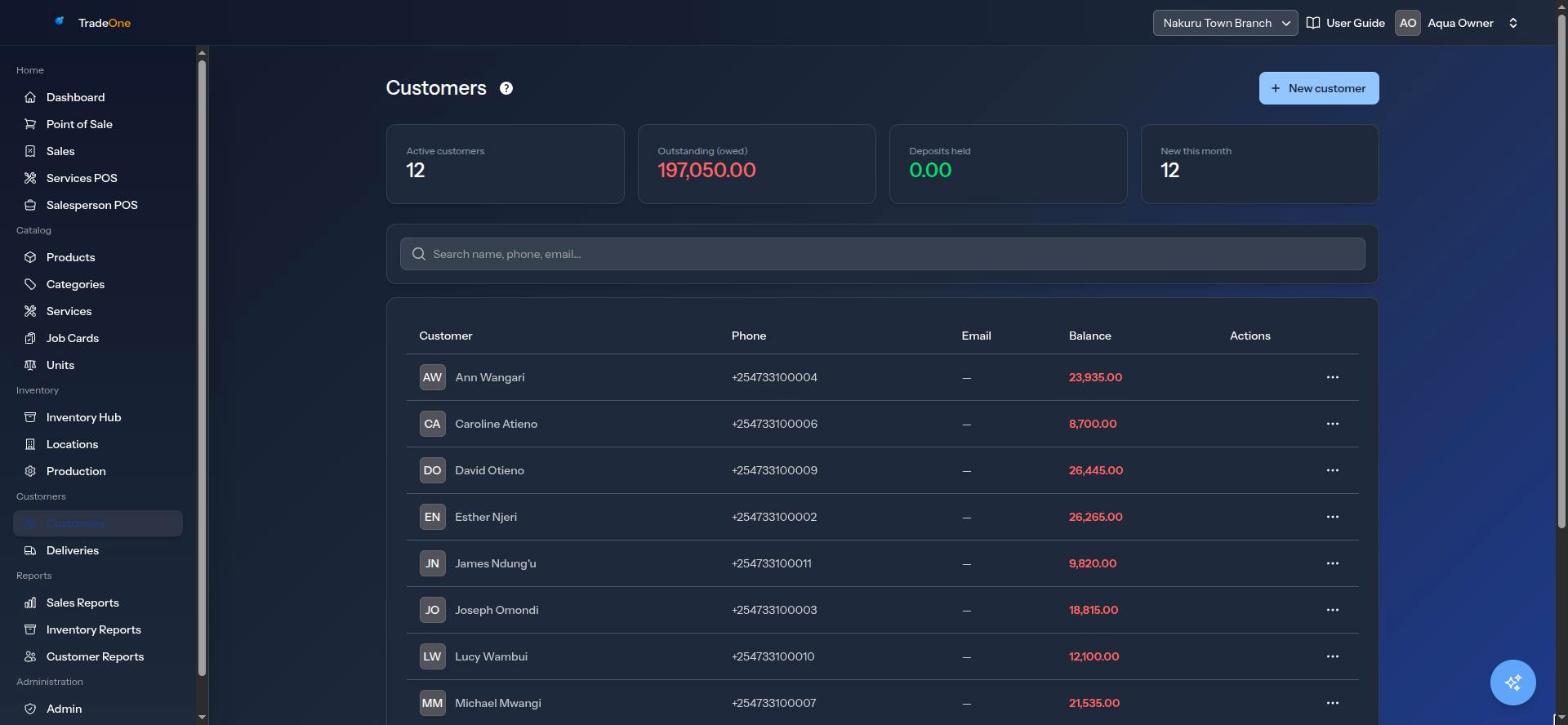
The Summary Cards
At the top are four figures:
| Card | Meaning |
|---|---|
| Active customers | How many customers are active |
| Outstanding (owed) | The total customers owe you |
| Deposits held | The total customers have paid in advance |
| New this month | Customers added this month |
The table lists Customer, Phone, Email and Balance. Search with "Search name, phone, email...". If nothing exists you see "No customers yet."
Adding a Customer
Press New customer (needs customers.create).
| Field | Notes |
|---|---|
| First name, Last name | Required |
| Phone number | Required, up to 50 characters |
| Email (optional) | Must be a valid email |
Press Create. You see "Customer created." After an edit you see "Customer updated."
Delivery Location
If you deliver to the customer, add a Delivery location on the same form so drivers can find the gate.
- Click the map or drag the pin. Or press Use my location if the customer is with you.
- Or type the Latitude and Longitude. Fill both or neither.
- Add a Label (e.g. Home) and Rider directions, for example "Blue gate, next to the chemist".
If the map does not load you see "Add GOOGLE_MAPS_KEY to show the map — you can still paste coordinates below." Ask whoever manages your system to set it up. You can still paste coordinates.
A customer without a saved location cannot be given a delivery. See Deliveries. In the mobile app you can also text the customer a link so they pin their own location. See The Mobile App.
Understanding a Customer's Balance
The Balance column is the key number.
- A positive balance (shown as owed) is money the customer owes you.
- A negative balance (shown as prepaid or deposit) is money they have paid in advance. You hold it for them.
- Zero is settled.
Example: Wanjiku takes KSh 2,400 of goods on credit. Her balance is KSh 2,400 owed. She pays KSh 1,000. Her balance is KSh 1,400 owed. She then pays KSh 2,000 as a deposit. Her balance becomes KSh 600 prepaid.
Recording Money
To move money on a customer's account without a sale, open the row menu and choose Record transaction (needs customers.manage-transactions).
Choose a Type, enter the Amount (more than 0) and optional Notes, and press Record. You see "Transaction recorded." The balance changes at once and the entry is saved in the User Trail.
Payment
Payment (customer pays down balance): the customer pays what they owe. The balance goes down. Use this when someone comes to clear a debt, for example "Otieno pays KSh 2,000 by M-Pesa".
Credit
Credit (customer takes on credit): the balance goes up. Credit sales at the till do this for you. Use this to record a debt by hand.
Deposit
Deposit (customer prepays): the customer pays in advance. The balance goes down, and below zero it becomes prepaid money you hold. A later sale paid by Deposit uses it.
Refund and Adjustment
- Refund raises the balance. It undoes a payment or deposit.
- Adjustment is a manual correction.
Warning
An Adjustment always raises the balance. It cannot lower it. To reduce what a customer owes, record a Payment and say why in Notes.
Credit and Deposit Sales at the Till
On the till, choose Credit or Deposit as the payment method and attach the customer. See Point of Sale.
- A credit sale adds the total to the balance.
- A deposit sale needs enough prepaid money.
- If you void such a sale, the balance is put right. See Sales History.
The mobile app's till has no customer picker, so it cannot make credit sales. Use the web till.
Statements and Reports
Reports > Customer Reports has Outstanding Balances, Deposits Held, Top Customers, New Customers and Statement (one customer's account history). See Customer Reports.
Editing and Archiving
- Edit needs
customers.edit. - Archive needs
customers.delete. It asks "Archive this customer?" and then shows "Customer archived." The customer is hidden from lists, but their history stays.