
Sales History
- What This Page Shows
- Finding a Sale
- Product Sales
- Service Sales
- Viewing a Sale's Items
- Printing and Reprinting
- Voiding
- Returns and Refunds
What This Page Shows
Home > Sales is the record of every sale. Use it to find a receipt, reprint it, or cancel a sale made by mistake.
You need the sales.view permission. To void you also need sales.void.
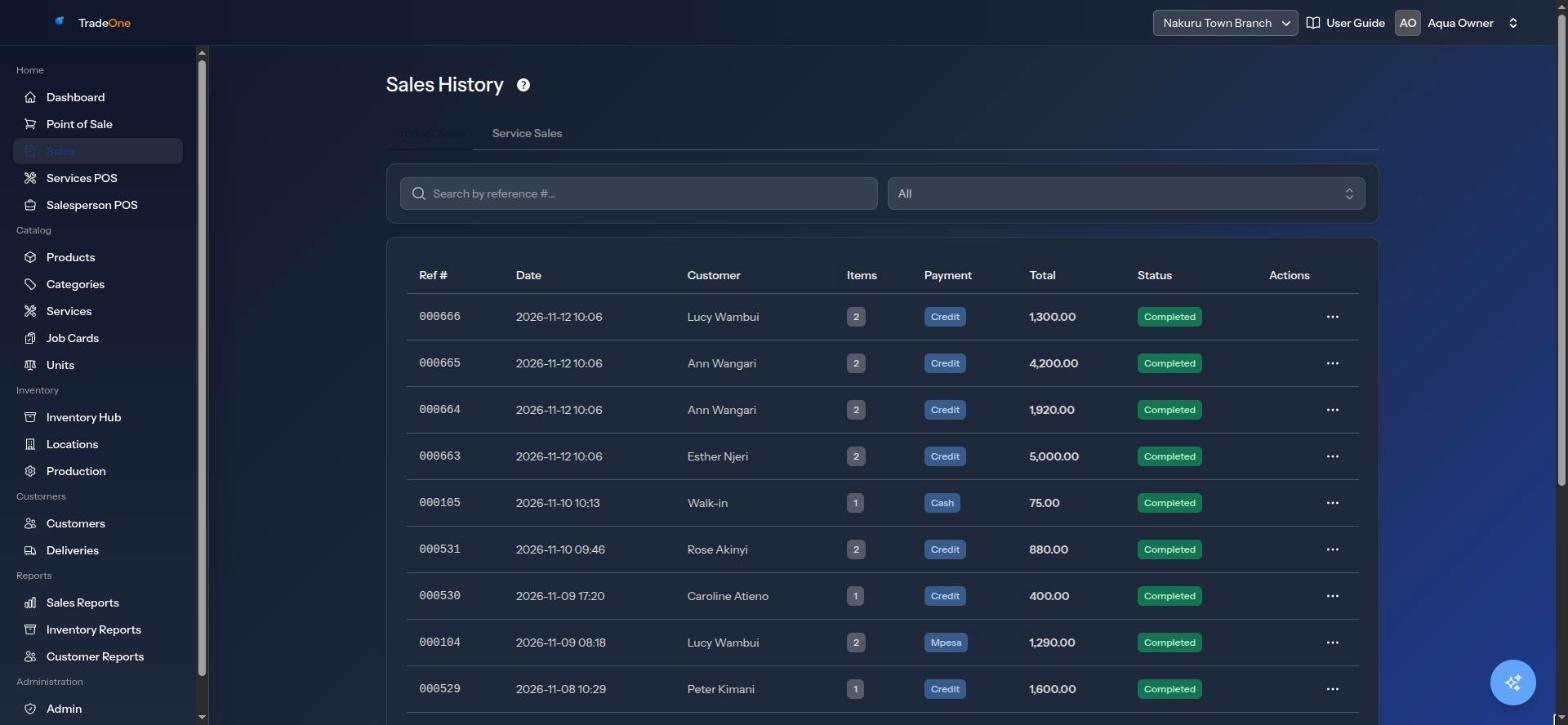
Finding a Sale
- Type the receipt number in "Search by reference #...".
- Use the status filter: All statuses, Completed or Voided.
Each sale has a reference number, such as 1043. It is on the receipt.
The list shows Ref #, Date, Customer, Items, Payment, Status and Total. A sale with no customer shows "Walk-in". If nothing exists you see "No sales yet."
Product Sales
The Product Sales tab lists sales made on the product till and on the mobile app. It also holds Salesperson POS sales.
Service Sales
The Service Sales tab shows only when the Services module is on. It lists sales from the Services POS and invoiced job cards. If empty you see "No service sales yet." See Services.
Viewing a Sale's Items
Open the row menu (the three dots) and choose View items. If you may void, the menu says View / void items. A box opens, "Sale #1043", showing each item, quantity and price, then Subtotal, Discount, Tax and Total.
Printing and Reprinting
- Print / PDF opens the sale as a PDF you can print or save.
- Reprint receipt sends the receipt to the receipt printer again. It shows only for completed sales.
When the receipt is sent you see "Receipt #1043 sent to the printer." The reprint is recorded in the User Trail.
If you see "No receipt printer is set up for this sale's location. Connect a print agent in Business Settings → Print Management.", the counter has no paired printer. See Printing Receipts. For anything but a completed sale you see "Only completed sales can be reprinted."
Voiding
Voiding cancels a sale. Only completed sales can be voided. Use it when the cashier scanned the wrong item or the customer changed their mind straight away.
Voiding a Whole Sale
- Open the row menu and choose Void sale. This needs
sales.void. - TradeOne asks "Void this sale? Inventory will be restored." Confirm.
- You see "Sale #1043 voided." and the status changes to Voided.
A sale that is already voided cannot be voided again: "Sale is already voided."
Voiding One Item
- Open View / void items.
- Press Void beside the item. TradeOne asks "Void this item? Its stock goes back and the sale total drops."
- You see "Item voided. Sale #1043 is now 850.00." The item stays on the list, struck through.
If it was the last item, the whole sale is voided: "That was the last item — sale #1043 voided."
Messages you might see: "That item is already voided.", "Only items on a completed sale can be voided."
What a Void Changes
| Thing | Effect |
|---|---|
| Stock | The items go back to the location they were sold from. With batch pricing on, they go back into their original batch |
| Customer balance | A credit sale lowers what the customer owes. A sale paid by deposit gives the money back to their deposit |
| Reports | A voided sale no longer counts in the sales figures. It appears in the Voided tab of Sales Reports |
| Audit | The void is recorded in the User Trail |
A voided service sale asks "Void this service sale? This cannot be undone." and does not put materials back in stock. You see "Service sale #77 voided."
Note
A sale paid in cash, M-Pesa or bank transfer is voided in TradeOne only. TradeOne does not return money. Hand the customer their money back yourself.
Returns and Refunds
TradeOne has no separate "return" button for product sales. To take back goods from a customer, void the item or the sale. For a salesperson returning unsold stock, see Salesperson POS.