
Inventory
- The Inventory Hub
- Stock Levels
- Adjusting Stock and Stock Counts
- Movements
- Transfers
- Other Tabs
- Pricing by Batch
The Inventory Hub
Inventory > Inventory Hub is one page for everything about stock. It says "Stock levels, movements, suppliers, purchases, and transfers — all in one place." You need inventory.view.
The tabs are:
| Tab | Shows when | Chapter |
|---|---|---|
| Stock Levels | Always | This page |
| Movements | Always | This page |
| Suppliers | You have suppliers.view |
Purchases and Suppliers |
| Purchases | You have purchases.view |
Purchases and Suppliers |
| Transfers | Warehouse module on, and inventory.transfer |
This page |
| Issue to Staff, Return from Staff | Salesperson POS module on, and the matching permission | Salesperson POS |
The page remembers the tab you used last. You can link straight to one with ?tab=purchases and so on.
Stock Levels
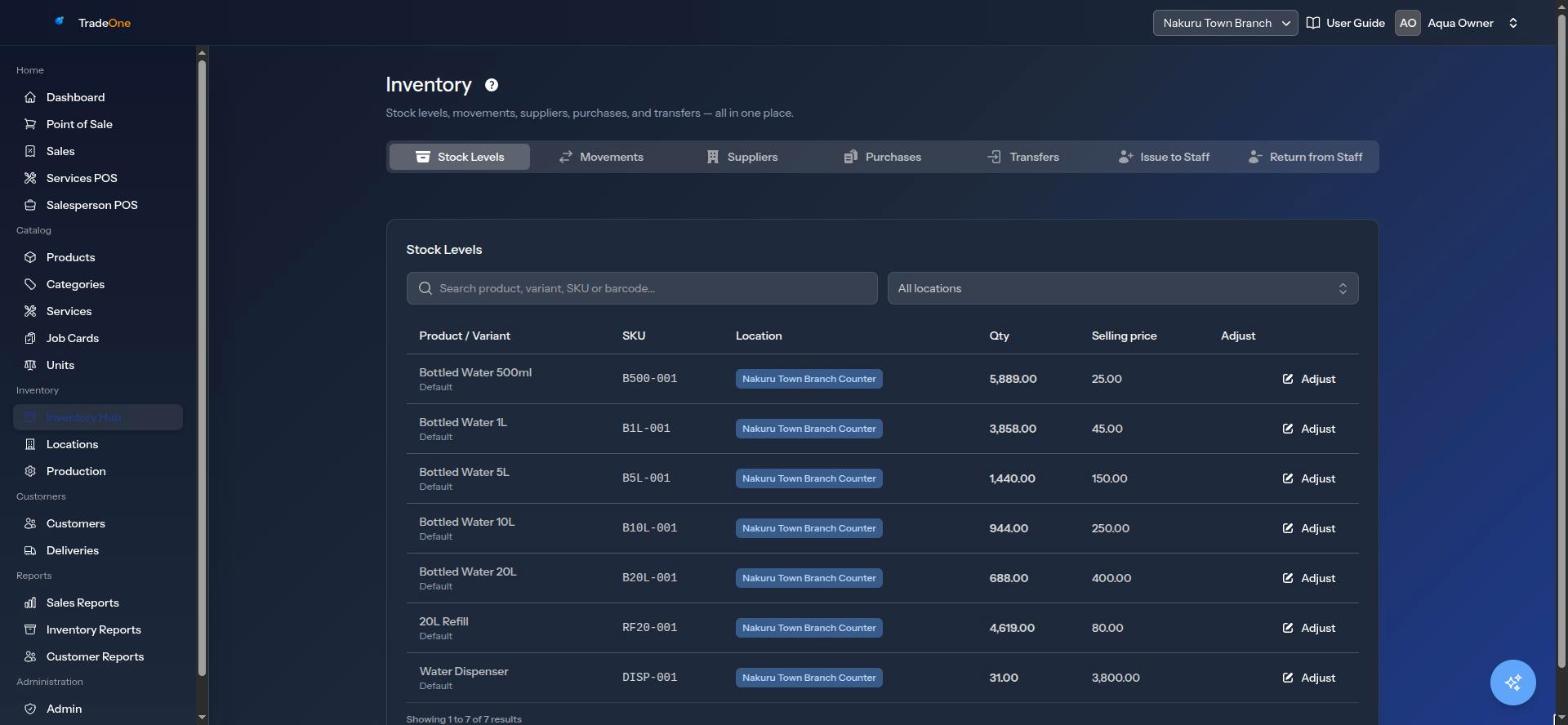
The Stock Levels tab ("Stock Levels") lists the quantity of every variant at every location.
Columns: Product / Variant, SKU, Location, Qty, and Adjust. When Price stock by batch is on there is also a Selling price column.
Use "Search product, SKU or barcode..." and All locations to narrow the list. You see only locations of the branch you are working in. If nothing is there you see "No stock records yet. Receive a purchase to get started."
With batch pricing on, the Selling price column shows the price that sells now. If newer stock follows at another price, you see a note like "then 25 after 3 more". It means: the next 3 units sell at the first price, then the price becomes 25.
Adjusting Stock and Stock Counts
TradeOne has no separate stocktake screen. You count the shelf, then set the quantity to what you counted.
- Open Stock Levels and find the item at the location.
- Press Adjust (needs
inventory.adjust). The box "Adjust stock" opens. - Type the New quantity. This is the full count, not the difference. It must be 0 or more.
- Add Notes (optional), such as "Monthly count" or "2 broken in transit".
- Save. You see "Stock adjusted."
TradeOne works out the difference and records a movement of type "Adjustment" with your name.
For example, the system says 24 bottles of 20L water at the counter. You count 22. Set New quantity to 22. A movement of 2 is recorded.
Note
With batch pricing on, a count that finds extra stock puts it in a new batch at the item's current cost. It sells last. Stock taken off uses the oldest batches first.
Every adjustment appears in the User Trail as a stock change.
Movements
The Movements tab ("Inventory Movements") is the history of every increase and decrease. Columns: Date, Product / Variant, Type, From, To, Qty and Before → After.
Filter with "Search product, variant, SKU or barcode...", All types and All locations. If nothing is there you see "No movements recorded yet."
The types are:
| Type | What happened |
|---|---|
| Sale | Sold at the till |
| User Sale | Sold by a salesperson from their own stock |
| Void | A sale was voided and stock came back |
| Purchase | A purchase was received |
| Adjustment | You set the quantity by hand |
| Transfer | Moved from one location to another |
| Issue To Staff, Return From Staff | Stock given to or taken back from a salesperson |
| Service Consumption | Materials used by a service or job card |
| Production Consume, Production Output | Materials used and goods made |
| Issue To Pos | Finished goods moved from the production floor to a counter |
Use movements to answer "How did this item get to this number?" The stock level is the total of its movements.
Transfers
Use Transfers to move stock you already own from one location to another. It needs the Warehouse / multiple stores module and inventory.transfer.
Moving Stock From a Warehouse to the Counter
The tab says "Transfer Stock" and "Move stock from one location to another (e.g. warehouse → counter)."
- Choose the Product variant.
- Choose From location and To location. They must be different.
- Enter the Quantity, more than 0.
- Add Notes (optional).
- Press Transfer. You see "Transfer completed."
If the source does not have enough you see "Insufficient stock at source location." If both are the same you see "Cannot transfer to the same location."
Because the till sells only from the counter, this is how you bring stock forward from the store. Move 50 bottles of 20L water from "Main Store" to "Counter", and they can be sold.
Production Floor Transfers
If you use Production, moving materials to the "Production Floor" is recorded as an issue to production. Moving finished goods from the Production Floor to a counter is recorded as "Issue To Pos". Both use this same Transfers tab.
Other Tabs
- Suppliers and Purchases: see Purchases and Suppliers.
- Issue to Staff and Return from Staff: see Salesperson POS.
Pricing by Batch
If Price stock by batch is on, each delivery is a batch. See Purchases and Suppliers for how prices are set and Products for how to fix a batch price.