
Products
- What a Product Is
- The Products List
- Adding a Product
- Stock Batches
- Deactivating, Archiving and Deleting
- Messages You May See
What a Product Is
A product is the thing you sell, such as "Drinking Water". Under it sit one or more variants: the exact sellable versions, such as "500ml", "1L" and "20L". The price and the stock belong to the variant, not to the product.
A product with one version, like "Bar Soap", still has one variant.
The Products List
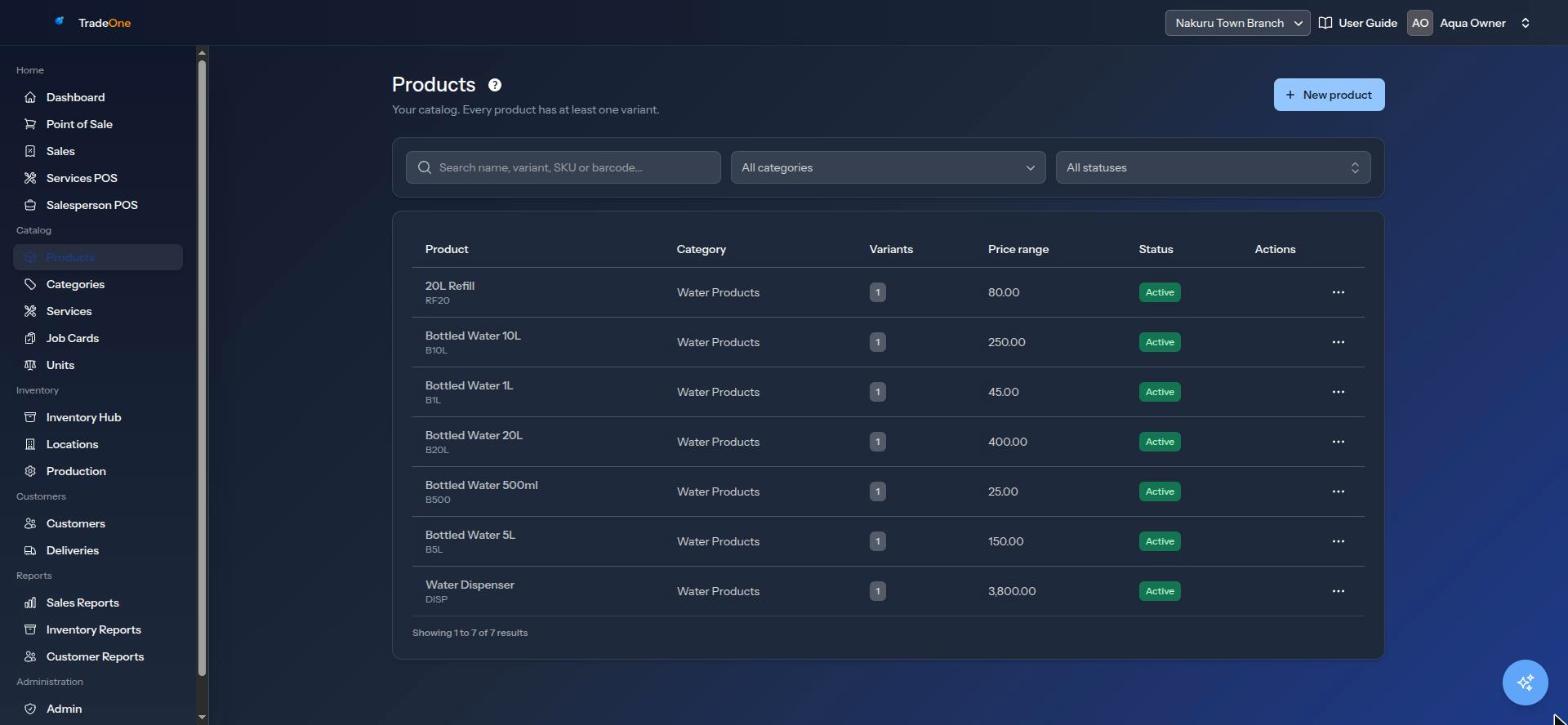
Open Catalog > Products (needs products.view). The page says "Your catalog. Every product has at least one variant."
The table shows Product, Category, Variants, Price range and Status. A price range like 120.00 - 150.00 means the variants have different prices. A single figure means they share one price. Produced products carry a "Produced" badge and bundles a "Bundle" badge.
Filters above the table:
- "Search name, variant, SKU or barcode..."
- All categories
- All statuses, Active only, Inactive only or Archived
The Archived filter shows only for users with products.delete.
Adding a Product
Press New product (needs products.create). To change one later use Edit in the row menu (needs products.edit). The form saves everything at once. You see "Product saved." and the screen then reopens in edit mode.
If your page reloads or the session ends in the middle, TradeOne keeps your unsaved work for two hours and offers to restore it.
Product Details
| Field | Notes |
|---|---|
| Name | Required, up to 255 characters |
| Brand (optional) | Up to 100 characters |
| Category | Optional. "No category" is allowed |
| Description (optional) | Up to 2,000 characters |
| SKU prefix | Optional. Up to 10 letters or digits. Leave it blank and TradeOne makes one |
| Product type | See below |
| Has variations, Active | Switches |
Product Type
| Type on screen | Meaning |
|---|---|
| Stock — bought & sold as-is | The normal case. You buy it and sell it. Raw materials are also "Stock" |
| Produced — manufactured in-house | Made from other items. Shows a Production formula. Needs the Manufacturing module to make it |
| Combined — bundle of other products | A kit sold as one line. It holds no stock of its own. Selling one takes its parts out of stock |
Variants
You must have at least one variant. If you try to remove the last one you see "A product must have at least one variant."
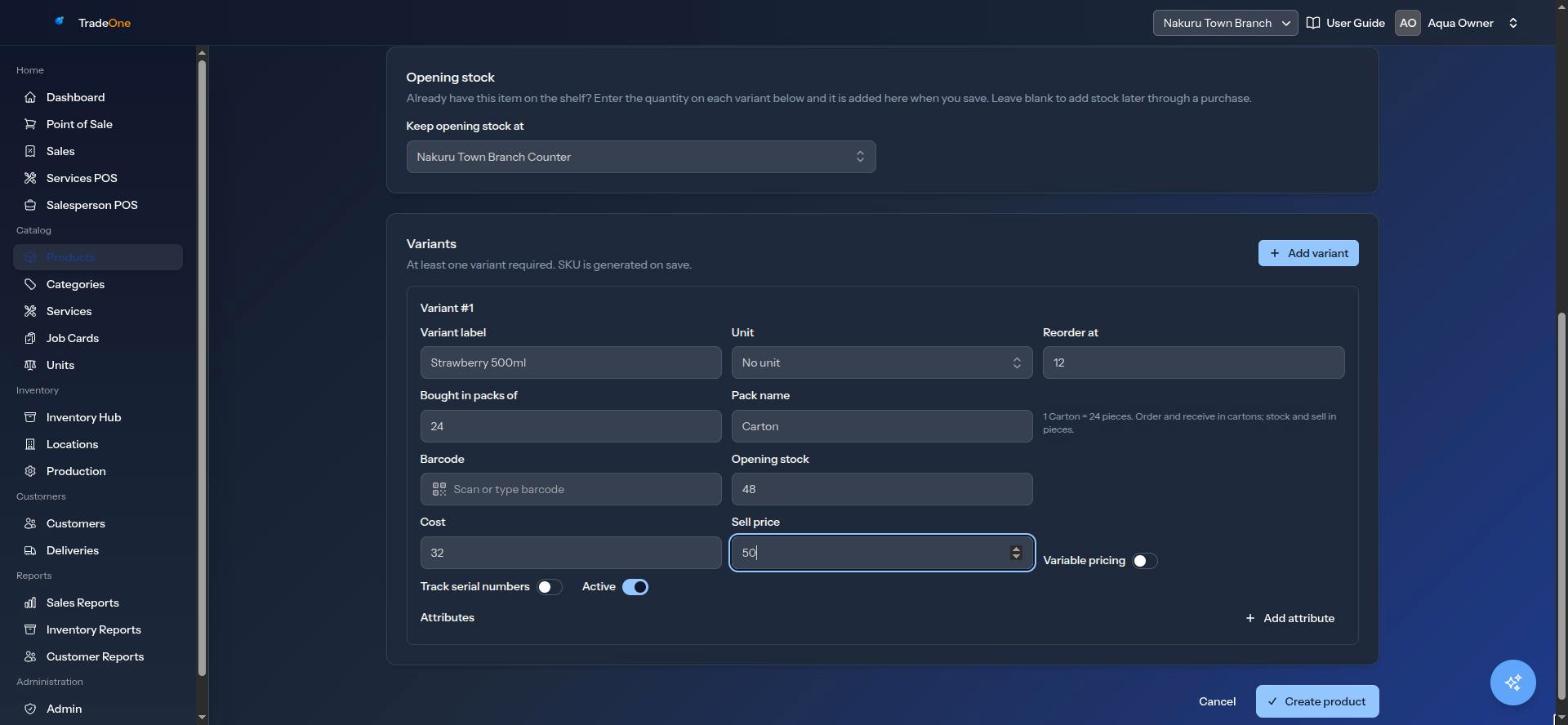
Each variant has:
| Field | Notes |
|---|---|
| Variant label | Required. For example 500ml |
| Unit | Optional. "No unit" is allowed |
| Cost | What it costs you. Optional |
| Selling price | Required. Shown as "Sell price" on the form. The error is "Variant price is required." |
| Reorder at | See below |
| Barcode | Optional |
| Active | A variant switched off is not sold |
| Attributes | Free notes like size = 20L. Use Add attribute |
Use Add variant for each extra size or flavour.
SKU and Barcode
The SKU is a unique code for each variant. TradeOne makes it for you when you save. It is the prefix, a dash and a number: for example 20LBO-001, 20LBO-002. If you do not type a prefix, TradeOne takes the first 5 letters or digits of the name.
The Barcode is the code on the pack. Click the field and scan the pack with a scanner, or type it. A barcode can belong to only one variant. You may see:
- "This barcode is already used by another product."
- "Each variant needs a different barcode."
On the till you can find a product by name, SKU or barcode. See Point of Sale.
Cost, Selling Price and Markup
Cost is what you pay. Selling price is what the customer pays. The markup is the selling price divided by the cost. A bottle costing KSh 18 and selling for KSh 25 has a markup of about 1.39.
Markup matters when Price stock by batch is on. Each delivery then gets its own selling price: its cost times the markup, rounded up to a whole shilling. If you receive the bottle at KSh 20, it sells at KSh 28 (20 x 1.39 = 27.8, rounded up). If an item sells at its cost or below it, or has no cost, its markup is 1 and each batch sells at its own cost. See Stock Batches.
With batch pricing off, TradeOne never changes your prices or costs when you receive stock.
Variable Pricing
Turn on Variable pricing when the price depends on the sale, such as loose sugar by the kilogram. Enter the Lowest allowed price and the Highest allowed price. Both are required once it is on. You may see:
- "Lowest price is required when variable pricing is on."
- "Highest price is required when variable pricing is on."
- "Highest price must be ≥ lowest price."
At the till, the cashier can type a price for that line. The price box on the till uses the lowest and highest values as its limits.
Reorder At
Reorder at is the stock level that flags an item as low. When the quantity at a location is at or below this figure, the item shows in the Low Stock report. For example, set 10 for 20L bottles. See Inventory Reports.
Note
The default is 0. An item with 0 in stock and Reorder at 0 will show as low.
Bought in Packs
Fill Pack name (for example Bale, Carton, Crate) and Bought in packs of (for example 12) when you buy in packs but sell singly. TradeOne shows "1 Bale = 12 pieces. Order and receive in Bales; stock and sell in pieces."
When you receive 7 bales, 84 pieces go into stock. See Purchases and Suppliers.
Serial Numbers
Turn on Track serial numbers for items sold as unique units, such as phones. At the till you then see a Serial # box for each unit sold. Leave it off for bulk goods.
Opening Stock
On a new product that is not a bundle, you can type how many you already have in Opening stock ("Qty on hand now") for each variant. Choose the place in Keep opening stock at. You need the inventory.adjust permission to see this.
The stock is recorded as a stock adjustment. After saving, add stock only through purchases. Items that track serial numbers cannot have opening stock. You see "Serial-numbered items get their stock through a purchase." If you choose a quantity but no location you see "Choose where the opening stock is kept."
Production Formula and Bundle Items
- Produced products show Production formula ("Materials consumed to make one unit."). Use Add material to choose the materials and quantities, and enter a Labor cost per unit.
- Combined products show Bundle items ("Products drawn from stock when this bundle is sold."). Use Add item. A bundle must have at least one item.
Rules: a variant cannot list itself ("A variant cannot reference itself."), and a bundle cannot include another bundle ("Bundles cannot contain other bundles."). Each line needs a choice and a quantity above zero: "Choose a material for each formula line.", "Choose a product for each bundle line.", "Quantity must be greater than zero."
See Production.
Stock Batches
When Price stock by batch is on, the edit form of a product has a Stock batches list at the bottom. It says "Each delivery sells at its own price, oldest first." Each open batch shows Received, Source, Remaining, Cost and Selling price.
To correct the selling price of one batch:
- Open Catalog > Products and choose Edit on the product.
- In Stock batches, click the pencil (Edit price) on the batch.
- Type the new price and save. You see "Batch price updated."
Only that batch changes. Other batches and the variant's own Sell price stay as they are. The change is recorded in the User Trail. You need products.edit.
You may see "The price cannot be negative." or "This batch is sold out, so its price can no longer change."
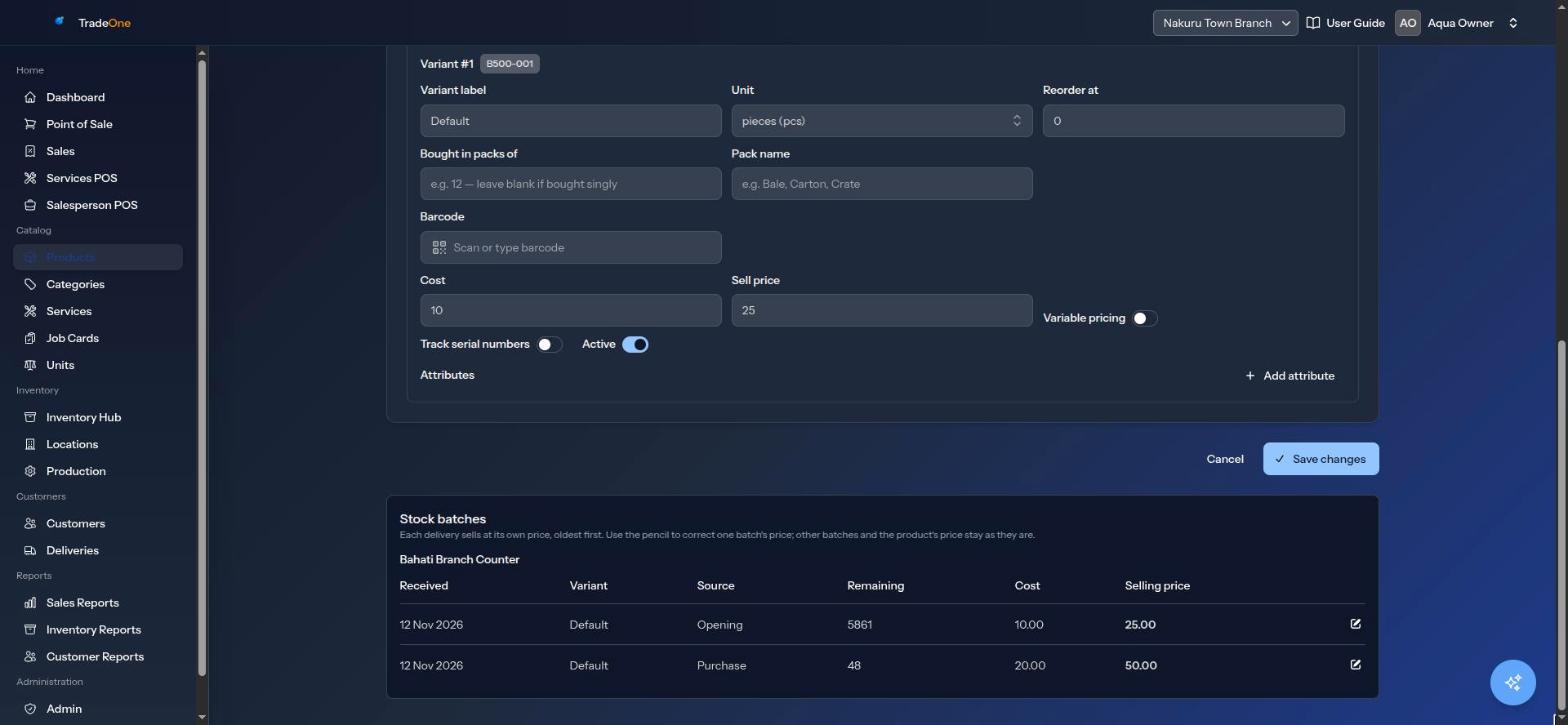
If you change the variant's own Sell price or Cost, only batches received after that use the new markup. Batches already in stock keep their price.
Deactivating, Archiving and Deleting
Use the row menu on the Products list.
| Action | Result | Permission |
|---|---|---|
| Deactivate | Pulls the product from sale. "Product deactivated." Activate puts it back | products.edit |
| Archive | Hides it from the list. Past sales stay. "Archive this product?" then "Product archived." | products.delete |
| Restore | Brings an archived product back. "Product restored." Set the status filter to Archived to find it | products.delete |
| Delete permanently | Removes it with its variants and stock history. "Product deleted permanently." | products.delete |
Delete permanently asks "Delete this product permanently? Its variants, stock levels and stock history will be removed. This cannot be undone." It works only on an archived product, and only if it was never sold, bought, used on a job card or production order, or used in another product's recipe or bundle. Otherwise you see "This product cannot be deleted permanently because it is used in sales. It will stay archived." (the reasons are listed).
Messages You May See
| Message | Meaning |
|---|---|
| "Product saved." | The product and variants were saved |
| "A product must have at least one variant." | Add a variant before saving |
| "This barcode is already used by another product." | Another live variant has that barcode |
| "Batch price updated." | One batch's selling price was changed |