
Introduction
- What TradeOne Is
- Who Uses It
- How the Menu Is Arranged
- Optional Modules
- How Stock and Sales Fit Together
- The Web App and the Mobile App
- How to Read This Guide
What TradeOne Is
TradeOne is a point-of-sale and stock system for shops in Kenya. It works for supermarkets, hardware shops, water refill shops, repair shops and similar businesses.
With TradeOne you can:
- Sell at the till and print a receipt.
- Keep track of every item you hold, and where it is.
- Buy stock from suppliers and receive it.
- Let regular customers buy on credit or pay in advance.
- Send orders out with drivers.
- See what you sold, what you made and what is running low.
All amounts are in Kenya shillings (KSh). You can accept cash, M-Pesa, bank transfer, credit and deposit, depending on what you switch on in Administration > Business Settings.
Who Uses It
TradeOne gives each person only the pages they need. This is controlled by roles (see Users and Roles).
| Person | What they usually do |
|---|---|
| Owner or manager | Sets up the business, reads reports, checks the User Trail |
| Cashier | Uses Point of Sale, looks up sales, takes customer payments |
| Storekeeper | Receives purchases, adjusts and transfers stock |
| Salesperson | Sells from stock issued to them (see Salesperson POS) |
| Driver | Delivers orders from the mobile app |
If you cannot see a menu item that this guide mentions, your role does not include it. Ask the owner or manager.
How the Menu Is Arranged
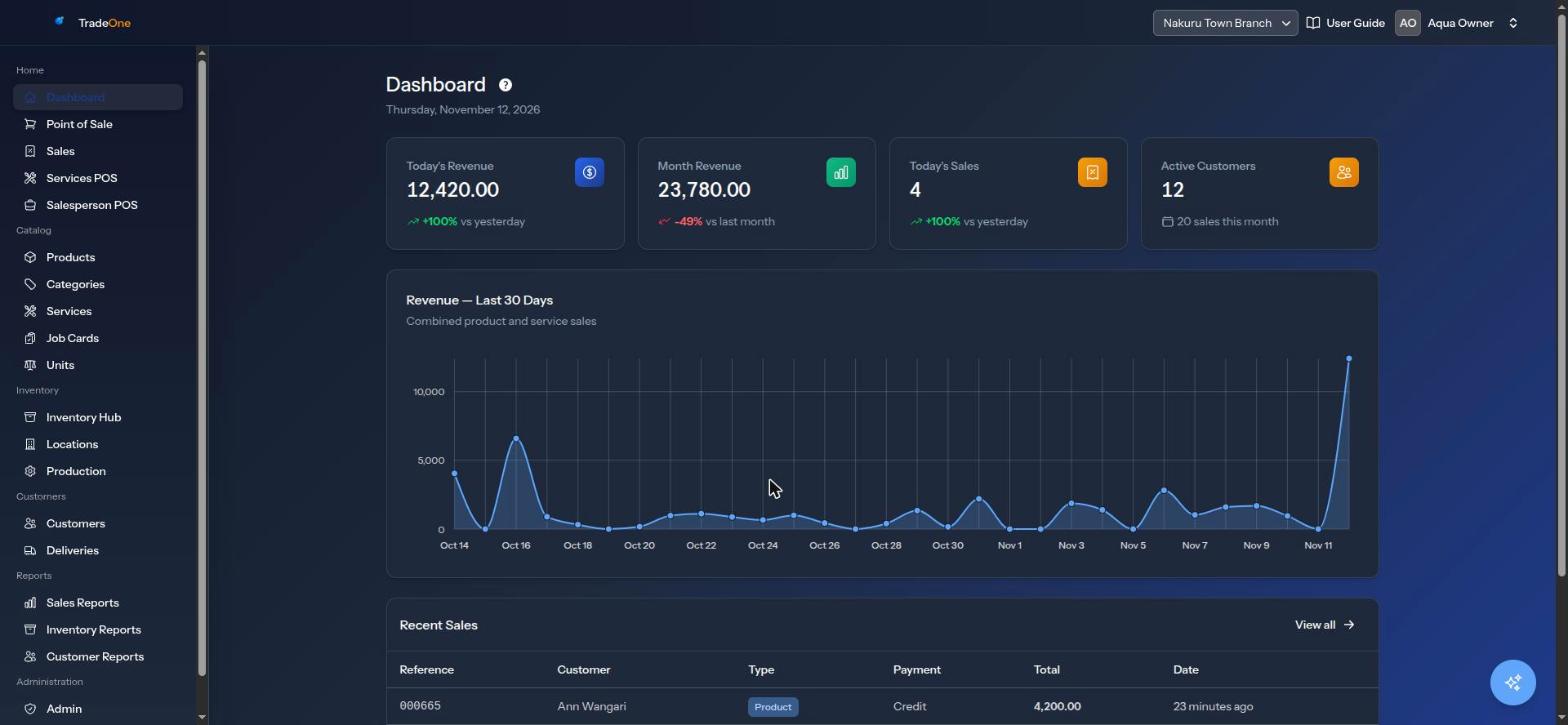
The menu on the left of the screen has these groups. Some items appear only when your role allows them, or when a module is switched on.
| Group | Items |
|---|---|
| Home | Dashboard, Point of Sale, Sales, Services POS, Salesperson POS |
| Catalog | Products, Categories, Services, Job Cards, Units |
| Inventory | Inventory Hub, Locations, Production |
| Customers | Customers, Deliveries |
| Reports | Sales Reports, Inventory Reports, Customer Reports |
| Administration | Admin, Business Settings |
At the top right you will find:
- The branch switcher. It appears only if your business has more than one branch (see Branches).
- Your name. Click it to choose light, dark or system colours, open Account, or Log out.
On a phone or a small screen, tap the menu button at the top left to open the list.
Optional Modules
Some parts of TradeOne are off until you switch them on in Administration > Business Settings > Features. They are:
- Services, Warehouse / multiple stores, Salesperson POS, Job Cards, Deliveries
- Price stock by batch
- Manufacturing / production
- AI assistant (on by default)
The Basic plan starts with Services off. The Pro plan starts with Services on. Everything else starts off, except the AI assistant. Each chapter in this guide says which module it needs. See Business Settings for the full list.
Note
If a page seems to be missing, check Business Settings > Features first. A switched-off module hides its pages for everyone in the business.
How Stock and Sales Fit Together
Stock is the heart of the system. Every sale takes stock out, and every purchase puts stock in.
flowchart LR
    A[Purchase order] --> B[Receive]
    B --> C[Stock at a location]
    C --> D[Sale at the counter]
    D --> E[Reports]
Remember three rules:
- Each item (called a variant) has a quantity at each location, such as the counter or a warehouse.
- The till sells only from the counter. Stock in a warehouse must be transferred to the counter first.
- Every change to stock is recorded as a movement, so you can always see how a number came about.
The Web App and the Mobile App
TradeOne has two parts that share the same data:
- The web app, used in a browser on a computer, tablet or phone. It has every feature.
- The Android mobile app, which is quick for selling, checking stock, deliveries and printing to a Bluetooth printer. It does not have every feature. See The Mobile App.
How to Read This Guide
- Menu paths are in bold, for example Inventory > Inventory Hub. The first part is the menu group, the second is the item. A third part, if any, is a tab on that page.
- Words in quotation marks are labels or messages exactly as they appear on screen.
- Each page notes the permission it needs, for example
pos.access. Permissions are explained in Users and Roles. - New to TradeOne? Follow the Setup Checklist.
- Meet an unfamiliar word? See the Glossary.
- Something went wrong? See Troubleshooting.