
Signing In
- Signing In on the Web
- Choosing Your Own Password
- Forgot Your Password
- Two-Factor Authentication
- Choosing a Branch and Counter
- Signing In on the Mobile App
- Signing Out
Signing In on the Web
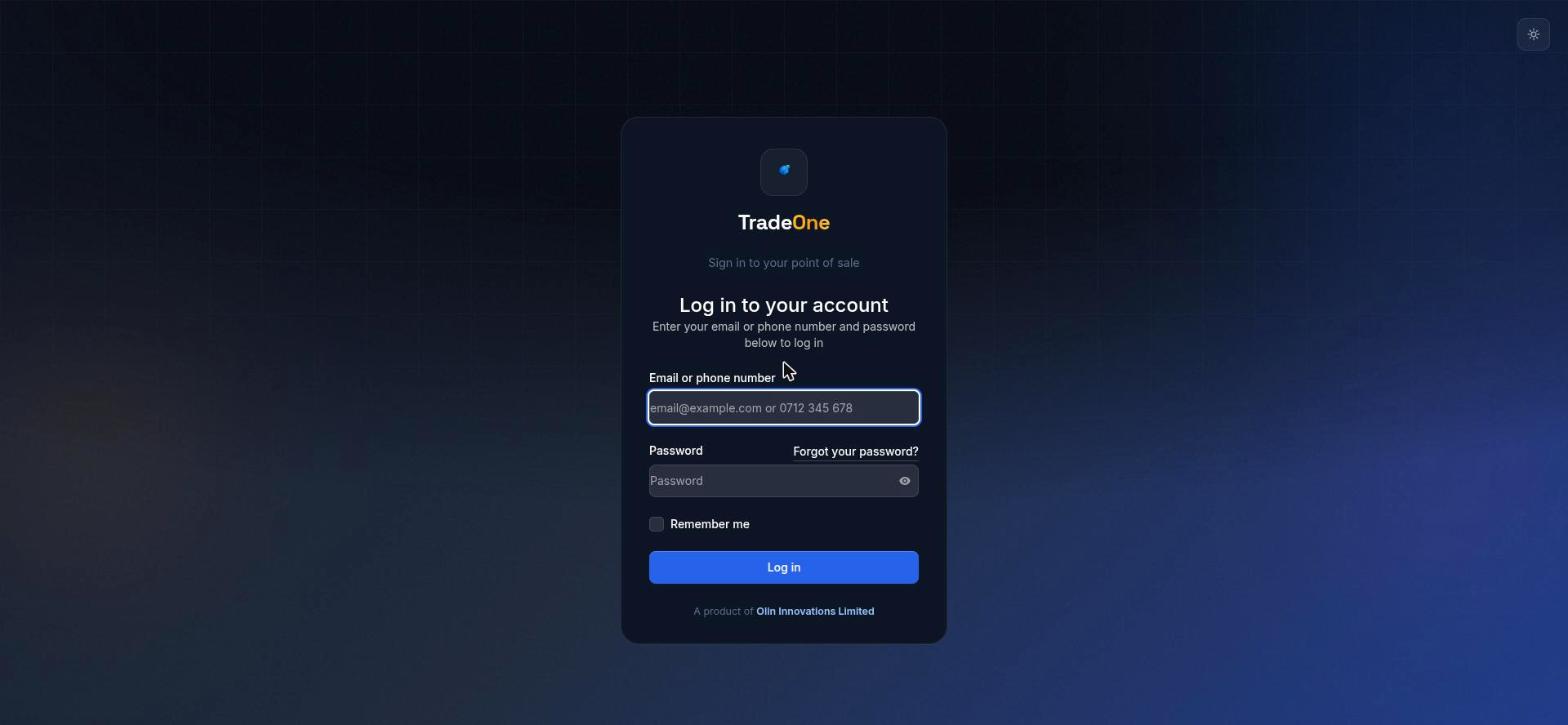
Open the TradeOne website in your browser and go to the login page. You will see "Log in to your account".
- In Email or phone number, type your email address or your phone number. For example
0712 345 678. - In Password, type your password. Use the eye icon to show what you typed.
- Tick Remember me if this is your own device.
- Press Log in.
Your manager creates your account. You cannot register yourself.
Note
If you were given only a phone number, use that phone number to sign in. A login email is optional.
After you sign in, TradeOne opens the first page your role allows: Dashboard, then Point of Sale, Sales and so on. A cashier without the dashboard permission goes straight to Point of Sale.
If you try too many times with wrong details, TradeOne makes you wait. The limit is 5 tries a minute.
Choosing Your Own Password
A new user, or a user whose password was reset, starts with the password 12345. The first time you sign in, TradeOne takes you to your Security page. It says "Choose your own password to continue." and "Choose your own password".
- In Current password, type
12345. - In New password, type a new password of at least 4 characters.
- In Confirm password, type it again.
- Press Save. You will see "Password updated. Welcome!".
You cannot use 12345 as your new password. TradeOne says "Choose a password other than the default 12345."
Until you save a new password you cannot open any other page. Only the Security page, password confirmation and Log out work.
Forgot Your Password
On the login page press Forgot your password?. Enter your email address and press Email password reset link.
This works only if your account has an email address. If you sign in with a phone number only, ask your manager to reset your password. A manager does this in Administration > Admin > Users, with Reset password. Your password goes back to 12345 and you must choose a new one. See Users and Roles.
Two-Factor Authentication
You can add a second step to your sign-in. Open your name at the top right, choose Account, then Security. Under "Two-factor authentication" press Enable 2FA. Scan the QR code with an authenticator app on your phone and enter the 6-digit code.
After this, every login asks for a code from the app. Keep the recovery codes safe. If you lose your phone, a manager with the users.reset-2fa permission can use Reset 2FA on the Users tab.
Choosing a Branch and Counter
On the Web
If your business has more than one branch, a branch switcher shows at the top right. Pick the branch you are working in. The page reloads and shows that branch's stock, sales and locations.
Users with the branches.access-all permission also see All branches.
The till on the web sells from the default counter of the branch you picked. See Locations.
On the Mobile App
After you sign in on the app:
- If you can use more than one branch, you see "Choose the branch you are working in".
- If the branch has more than one counter, you see "Choose the counter you are selling from".
You can change both later in Menu > Settings, under Branch and Selling location. The chosen one shows "Active".
Signing In on the Mobile App
Open the app. You see "Sign in to your point of sale".
- Enter Email or phone number and Password.
- Press Sign in.
If the details are wrong the app says "These credentials do not match our records." If your business subscription has run out it says "Your account is inactive or the subscription has expired." See Subscription.
Each user can be signed in on one phone at a time. Signing in on a new phone signs the old one out.
On the default password, the app shows "Choose your own password" with the boxes "Current password (12345)", "New password" and "Confirm new password". Press Save password.
Signing Out
- On the web: open your name at the top right and choose Log out.
- On the app: Menu > Settings > Log out.
Always sign out on a shared till.