
Point of Sale
- What the Till Does
- Before You Sell
- The Till Screen
- Finding Products
- The Cart
- Payment and Customer
- Discount and Tax
- Completing the Sale
- Held Sales
- Unfinished Carts
- Price by Batch at the Till
- Messages You May See
What the Till Does
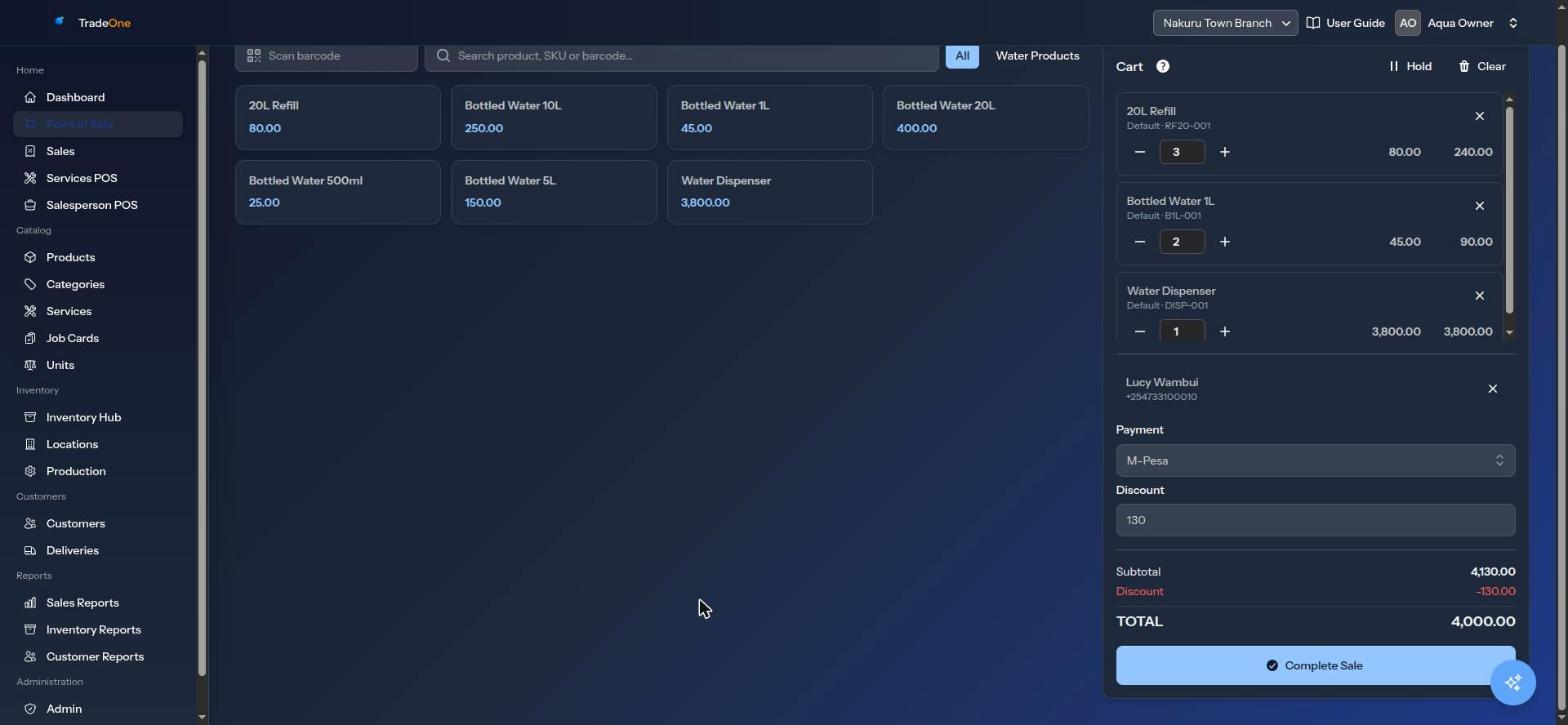
Home > Point of Sale is your till. You pick products, build a cart, take payment and complete the sale. TradeOne takes the stock out of the counter, records the sale and prints the receipt.
You need the pos.access permission.
Before You Sell
- Products must be active and have a selling price.
- They must have stock at the default counter. The till shows only items with stock there. See Locations.
- Turn on the payment methods you accept. See Business Settings.
- Set the tax rate if you charge VAT. See Business Settings.
The Till Screen
The left side shows products. The right side shows the Cart, the customer, payment and the total.
Finding Products
Search and Categories
- Type in "Search product, SKU or barcode..." to filter. Results update as you type.
- Press a category button to see only that category. All shows everything.
- The grid shows up to 24 products at a time. Type a few letters to narrow it down.
- A product with no stock at the counter does not show. The message "No in-stock products match your search." means nothing matches or nothing is in stock.
Scanning a Barcode
Click the Scan barcode box and scan the pack. A scanner sends the code and then Enter, and the item goes straight into the cart. A scan never just filters the list.
You may see:
- "No product has barcode "123456"."
- "Baraka Mineral Water 500ml is not active for sale."
- "Baraka Mineral Water 500ml is out of stock at the counter."
Products With Variants
If a product has more than one variant (it shows a badge like "3 variants"), tapping it opens "Pick a variant". Choose the size or version. A product with one variant goes straight into the cart.
The Cart
Added items appear in the Cart. If the cart is empty it says "Tap a product to add it here."
- Use - and +, or type the quantity.
- Use the cross to remove a line.
- Clear empties the whole cart.
- Adding an item that is already in the cart increases its quantity.
- If you ask for more than the counter holds you see "Only 6 in stock for Baraka Mineral Water 500ml." and the quantity is kept at what is available.
- For an item that tracks serial numbers, a Serial # box appears for each unit.
- For a variable-price item, you can type the price. The box limits it between the lowest and highest price set on the product.
Payment and Customer
Walk-in Sales
Leave the customer blank for a walk-in. The sale shows as "Walk-in" in Sales History.
To attach a customer, type in "Search customer (optional)..." and tap the name. The cross removes them.
Payment Methods
Choose from the Payment list. It shows only the methods you switched on in Business Settings, such as Cash, M-Pesa, Credit and Deposit.
Note
TradeOne records which method was used. It does not send an M-Pesa prompt or check the payment. Confirm the M-Pesa message on your phone before you complete the sale.
Credit Sales
Choose Credit to let a regular customer take goods now and pay later. A customer is required: "Customer is required for credit/deposit payments." The total is added to what they owe. Take their payment later from Customers.
Deposits
Choose Deposit when the customer has paid in advance. The total is taken from their prepaid money. If they do not have enough you see "Insufficient deposit balance. Available: 500, required: 800."
Discount and Tax
- Discount is one amount in KSh for the whole sale, not per item. Enter it in the Discount box. It comes off the subtotal before tax.
- Tax is added automatically from the rate in Business Settings.
Example with a 16% tax rate: items worth KSh 1,000, discount KSh 100. Tax is (1,000 - 100) x 16% = KSh 144. Total is KSh 1,044.
The summary shows Subtotal, Discount, Tax and TOTAL.
Completing the Sale
Press Complete Sale. You see "Sale #1043 completed." and a green "Sale completed!" box. Then TradeOne:
- Takes the stock out of the counter.
- Saves the sale, which you can find in Home > Sales.
- Adds the total to the customer's balance if you used Credit.
- Sends the receipt to the counter's printer. See Printing Receipts.
If something is wrong you see a red message, for example "Cart is empty." or "No default counter location found." The cart stays so you can fix it.
Held Sales
Use Hold to put a sale aside while you serve someone else.
- Press Hold. You see "Sale on hold. Resume it from Held sales within 2 hours."
- Serve the next customer.
- Press Held (it shows how many you have). The Held sales box says "Only you can see these. Each is kept for 2 hours. Resuming one puts the sale you are on, if any, on hold."
- Press Resume on the sale. You see "Sale resumed." Press the bin to delete it ("Held sale deleted.").
Things to know:
- A held sale is yours. Nobody else can see or resume it. Another person sees "Only the cashier who held this sale can resume or delete it."
- After 2 hours it disappears. You see "That held sale has expired or was already resumed."
- Holding does not reserve stock. When you resume, TradeOne checks again. If an item sold out, it is taken out and you see "No longer in stock, removed: ...".
- A held sale belongs to one till screen and one branch. A sale held on the product till does not appear on the Services POS.
Unfinished Carts
If your page reloads or your session ends, TradeOne keeps your cart for two hours. When you return you see "Restored your unsaved work from ...". Press Discard to throw it away. This is different from a held sale. It is automatic.
Price by Batch at the Till
When Price stock by batch is on, the till takes the oldest batch first and uses that batch's price. If your quantity runs across two batches, the cart line is split and each part has its own price. The line total is the sum. See Products.
Messages You May See
| Message | What to do |
|---|---|
| "Cart is empty." | Add an item first |
| "Only 6 in stock for ..." | Reduce the quantity, or move stock to the counter |
| "... is out of stock at the counter." | The item may be in a warehouse. See Troubleshooting |
| "Customer is required for credit/deposit payments." | Attach a customer or choose another method |
| "Insufficient deposit balance. ..." | The customer must top up, or pay another way |
| "No default counter location found." | Ask your manager to check Locations |