
Printing Receipts
- How Printing Works
- What Is on a Receipt
- Printing From the Web
- Reprinting a Receipt
- Printing From the Mobile App
- Other Documents
How Printing Works
TradeOne prints on thermal receipt printers (the small roll-paper kind).
- On the web, the receipt is sent to a small program called the Print Agent. You install it on the computer that the printer is connected to. It prints for you.
- On the mobile app, the phone prints by itself to a built-in printer or a Bluetooth printer. It needs no Print Agent.
A receipt prints by itself when a web sale is completed. The mobile app asks you with a Print button.
What Is on a Receipt
The receipt shows your business name, address and phone from Business Settings, the items, the Tax line when tax is charged, the total, and the line "Thank you for your business!".
Printing From the Web
Step 1: Download the Print Agent
On the TradeOne website home page, find Downloads. Choose the version for your computer: Windows, Linux or macOS. Install it on the computer connected to your receipt printer. This computer must be on while you sell.
Step 2: Get a Token
- Open Administration > Business Settings > Print Management.
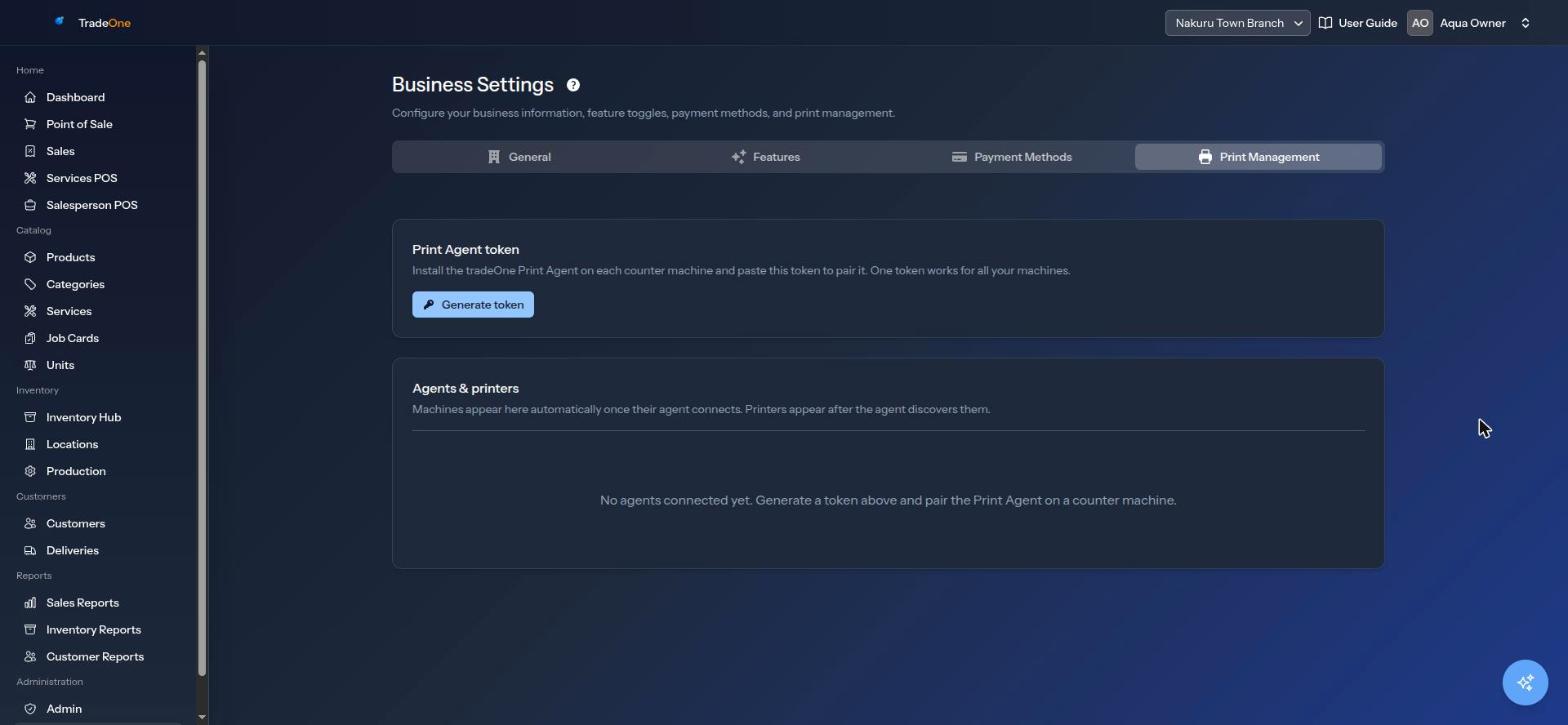
- In "Print Agent token" press Generate token. You see "Agent token generated. Copy it into each agent to pair it."
- Copy the token. If you already have one, press Reveal token.
One token works for all your machines. Keep it secret: "anyone with it can send print jobs to your printers."
Step 3: Pair the Computer
Open the Print Agent on the computer and paste the token when it asks. The computer then appears under Agents & printers with a green Online badge. The printers it finds appear under it.
"Machines appear here automatically once their agent connects. Printers appear after the agent discovers them." Until then you see "No agents connected yet. Generate a token above and pair the Print Agent on a counter machine."
An agent can show Online, Offline (the computer is off or the agent is not running) or Inactive (you deactivated it). It also shows when it was last seen.
Step 4: Choose the Location and Default Printer
Set the agent's location. Each agent has a location list that starts at "No location". Choose the counter this computer serves. You see "Location updated for Front Desk PC."
Warning
A receipt goes only to an agent whose location matches the location of the sale. An agent with "No location" gets no receipts. If nothing prints, check this first.
Choose the default printer. On the printer row, press the star (Set as default). You see "Default printer set." Check that ESC/POS shows as on: receipts print only on printers with ESC/POS on. You can Disable or Enable a printer from its row.
A Printer on the Network
For a printer connected by cable or Wi-Fi to your router rather than USB:
- On the printer row, press the globe button (Network (IP/port)).
- Enter its IP address, for example
192.168.1.50, and its Port. Most receipt printers use9100. - Press Save. You see "Printer network settings saved."
Rules: the IP address must be valid and the port from 1 to 65535.
Windows: Share the Printer
On Windows a USB printer must be shared, and the share name must be exactly the same as the printer name.
- In Windows open the printer's Properties, then the Sharing tab.
- Tick the box to share the printer.
- Set the Share name to the exact printer name.
If it is not shared, the print fails with "Failed to copy to ... Is the printer shared?". See Troubleshooting.
Test Print
Press the Test print button on the printer row. You see "Test print queued for XP-58." A test slip should come out within seconds.
Managing the Token and Agents
| Action | What it does |
|---|---|
| Regenerate | Makes a new token. "Regenerate the token? All agents must be re-paired with the new one." |
| Revoke | Stops the token. "Revoke the token? Agents will stop printing until re-paired." You see "Token revoked. Existing agents can no longer connect until re-paired." |
| Deactivate / Activate | Pauses an agent: "Agent deactivated." / "Agent activated." |
| Delete | "Delete this agent and its printers?" then "Agent removed." |
Do these only if the token has leaked or a computer has been retired.
Reprinting a Receipt
In Home > Sales, open the row menu and choose Reprint receipt. See Sales History.
Printing From the Mobile App
Open Menu > Settings. The Printer section has Use built-in printer. The Bluetooth printer section lets you choose a portable printer.
After you complete a sale in the app you see "Sale completed" with the receipt number and total. Press Print to print it, or Done.
The Built-in Printer
Some POS handsets have a printer built in. Keep Use built-in printer on. Press Test to check it.
A Bluetooth Printer
- In the phone's own Bluetooth settings, pair the printer first. The app shows "No paired devices. Pair the printer in Android Bluetooth settings first." until you do.
- In TradeOne Menu > Settings, under Bluetooth printer press Find paired printer and choose yours.
- Turn Use built-in printer off, so receipts go to the Bluetooth printer.
- Press Test.
To use another one, press Choose a different printer. Remove forgets it.
If Android asks for Bluetooth permission, allow it. If you refused you see "Bluetooth permission denied — enable it in app settings."
The Bluetooth printer must be a Bluetooth Low Energy printer. The P58E portable printer works this way. If the printer is not that kind you see "No print characteristic found on this printer."
Other Documents
Purchase orders, job cards, delivery notes, production orders and reports all open as PDFs with Print / PDF and can be printed on a normal printer.