
Deliveries
- What Deliveries Do
- Before You Start
- The Dispatch Desk
- Delivery Location
- Creating a Delivery Request
- Delivery Types
- Assigning a Driver
- Statuses
- Closing a Stop From the Desk
- The Driver's Day in the App
- Customers Pinning Their Own Location
What Deliveries Do
A delivery takes an order out to a customer. The cashier rings up the sale. The dispatcher turns it into a delivery request and gives it to a driver. The driver follows a route on their phone and closes each stop.
This suits water refill shops especially, where a driver drops full 20L bottles and takes empties back.
flowchart LR
    A[Sale at counter] --> B[Delivery request]
    B --> C[Assign driver]
    C --> D[Driver en route]
    D --> E[Delivered or failed]
Before You Start
- Switch on Deliveries in Administration > Business Settings > Features. See Business Settings.
- Choose your usual Default delivery type in Business Settings > General.
- Drivers are staff. Give each one a user account so they can sign in to the mobile app. A driver needs
deliveries.viewanddeliveries.deliver. - The dispatcher needs
deliveries.viewto see the desk anddeliveries.dispatchto create, assign and close deliveries.
The Dispatch Desk
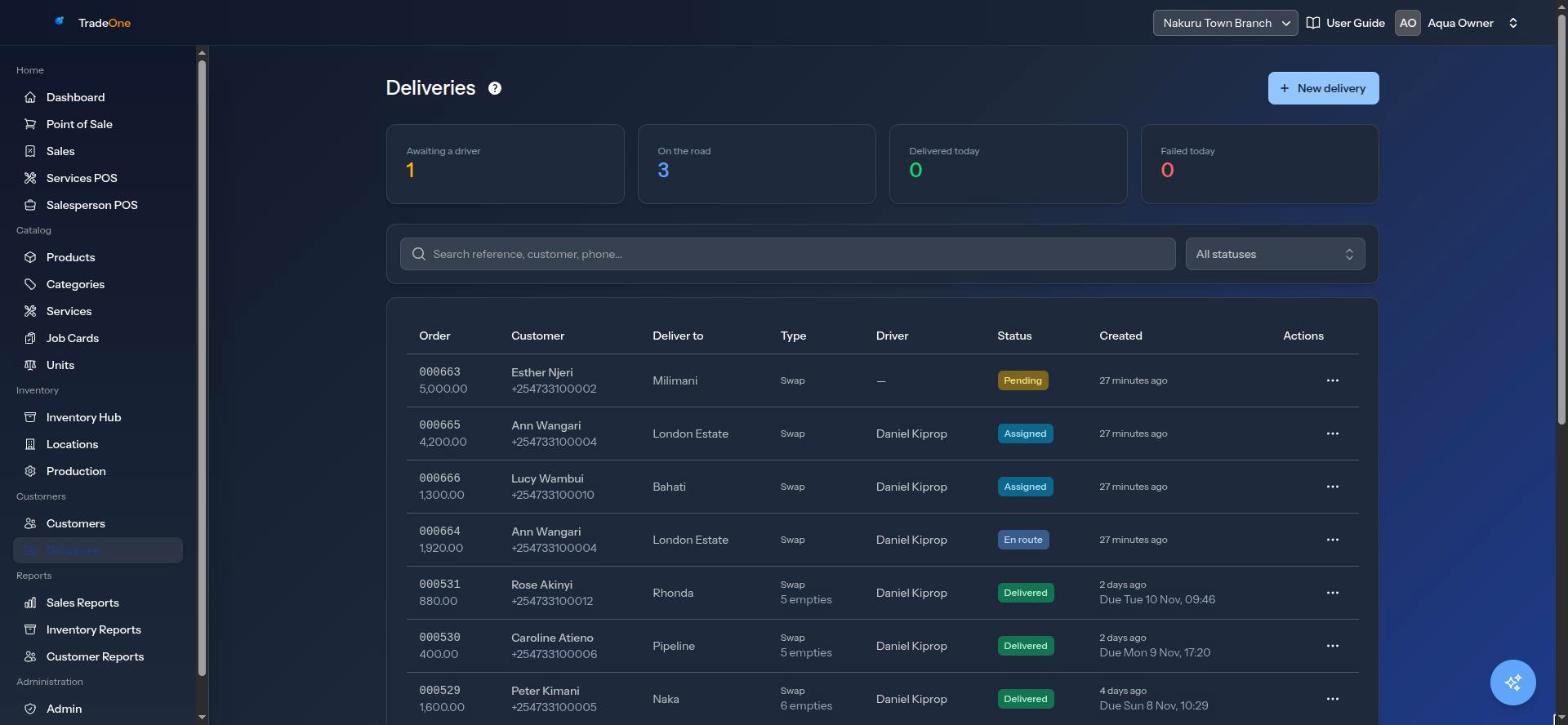
Open Customers > Deliveries. The four cards at the top are:
| Card | Meaning |
|---|---|
| Awaiting a driver | Requests with no driver yet |
| On the road | Deliveries under way |
| Delivered today | Stops completed today |
| Failed today | Stops that failed today |
The table has Order, Customer, Deliver to, Type, Driver, Status, Created and Actions. Search with "Search reference, customer, phone..." and filter by All statuses.
You see only the deliveries of sales made in the branch you are working in. If there are none you see "No deliveries yet."
Delivery Location
A delivery needs a saved location on the customer. Add it on the Customers page. See Customers. If the customer has none, you see "This customer has no saved delivery location. Add one from the Customers page first."
Creating a Delivery Request
- Ring up the sale at the till with the customer attached. For a customer who pays later, use Credit. See Point of Sale.
- In Customers > Deliveries, press New delivery. The box is "New delivery request".
- Search for the sale by receipt number, customer or phone: "Search by receipt number, customer or phone". Only completed sales without a delivery are listed. Otherwise you see "No matching completed sales without a delivery." The hint reads "Pick a completed sale for a customer with a saved delivery location."
- Choose where to deliver (Deliver to).
- Optionally set a Delivery fee, Scheduled for (optional), and the Delivery type.
- Optionally choose a Driver (optional). "Assign now and the driver is notified on their phone. Leave blank to assign later."
- Press Create request. You see "Delivery request created." or, with a driver, "Delivery created and driver notified."
Delivery Types
| Type | What happens |
|---|---|
| Drop off | The driver takes the goods and leaves them |
| Swap (take empties) | The driver hands over full containers and takes empties back in the same visit. The driver records how many empties came back |
| Collect, refill & return | Two trips. The driver collects empties, you refill them, and the driver then delivers them back |
The type you set under Business Settings > General is the starting choice. Each request can change it. On the desk the types show as Drop, Swap and Collect & return.
Assigning a Driver
In the row menu choose Assign driver (or Reassign driver). Pick a driver. Any active staff member can be chosen. If there are none you see "No active staff in this branch to assign." Press Assign. You see "Driver assigned — they have been notified."
The driver's phone gets a push notification and the stop appears in their Deliveries list in the app.
Statuses
The status moves in this order:
Pending (no driver yet) then Assigned then En route then Delivered or Failed.
For Collect, refill & return there are two extra steps in the middle: Empties collected, then Refilled and ready. After refilling, the stop goes back on the driver's route.
Delivered and Failed stops are closed.
Closing a Stop From the Desk
Drivers normally close stops in the app. You can do it from the desk if, for example, a driver phones you. Use the row menu:
- Mark delivered. The box asks for Cash collected on delivery. It starts with the sale total. Change it to what was really collected. "Recorded as a payment on the customer account. Leave 0 if nothing was collected." For a swap, fill Empties taken back.
- Mark failed. You must give a Reason, for example "Customer unavailable on arrival".
- Empties collected and Refilled — ready to go for collect-and-return deliveries. The second one says "The empties are refilled and back on the van."
After saving you see "Delivery updated."
Warning
The Cash collected on delivery box starts with the sale total. If the customer already paid at the counter, set it to 0. Any amount you leave there is recorded as a payment on the customer's account and lowers their balance.
A delivery note can be printed: choose Print / PDF.
The Driver's Day in the App
In the app the driver opens Menu > Deliveries.
- Assigned stops are listed. If none you see "No deliveries assigned".
- Press Plan my route. The app asks for permission to use the phone's location ("Allow location access to plan an optimal route."). Stops are ordered for the shortest drive from where the driver is. If the branch has a pin, the route ends back at the branch. After a new stop arrives the app says "New stop assigned — plan again to fit it into your route." Press Re-plan.
- Open a stop. Press Navigate to open directions.
- Press Mark en route when leaving.
- At the customer, press Mark delivered, or Mark failed with a reason. For a swap, enter Empties taken back. For a collect-and-return stop, enter Empties picked up on the first visit.
If the customer has no saved pin, the driver can save their current position when at the gate: "Location saved. Future deliveries for this customer will route here."
Customers Pinning Their Own Location
From the mobile app, staff can text a customer a link (Menu > Customers). The customer opens it, taps Use my current location, adds directions and presses Save my location. The link works once and lasts 72 hours. After that: "This link has expired or has already been used."
The page needs the customer's phone to allow location. If they refuse: "Could not get your location. Please allow location access."