
Salesperson POS
- What It Is For
- Before You Start
- Issuing Stock to a Salesperson
- Selling From Your Own Stock
- Returning Unsold Stock
- Reports
- Messages You May See
What It Is For
Some businesses send people out with goods: a salesperson with boxes of soap, a water vendor with a trolley of 20L bottles, a rep who visits kiosks. TradeOne lets you hand them stock, let them sell only that stock, and take back what they do not sell. You always know who holds what.
flowchart LR
    A[Location stock] --> B[Issue to staff]
    B --> C[Salesperson stock]
    C --> D[Sell]
    C --> E[Return unsold]
    E --> A
Before You Start
- Switch on Salesperson POS in Administration > Business Settings > Features. See Business Settings.
- The salesperson needs a staff record and a user account linked to it. See Users and Roles.
- The person who issues stock needs
inventory.issue-to-staff. To take stock back they needinventory.return-from-staff. - The salesperson needs
pos.user-accessto use the till.
Issuing Stock to a Salesperson
Open Inventory > Inventory Hub > Issue to Staff. The page says "Issue Stock to Staff" and "Move stock from a location into a salesperson's allocation."
- Choose the Staff member ("Select staff...").
- Choose the Variant ("Select variant...").
- Choose the From location.
- Enter the Quantity. It must be more than 0.
- Press Issue Stock. You see "Stock issued."
The stock leaves the location and is recorded as "Issue To Staff". The page also shows each salesperson's Current Allocation.
If the location has too little you see "Insufficient stock at Counter. Available: 8, requested: 12."
Selling From Your Own Stock
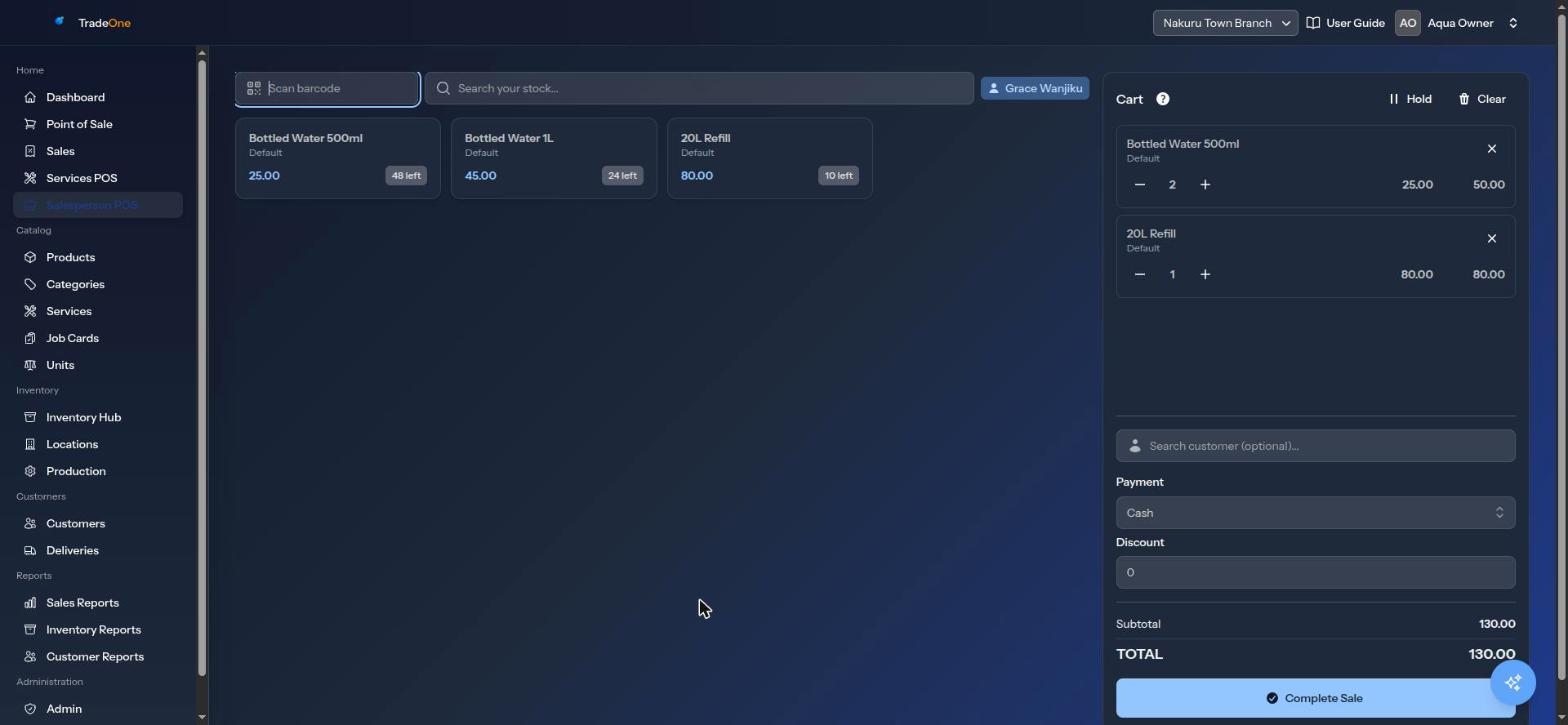
Open Home > Salesperson POS (needs pos.user-access). It looks like the normal till, but the grid shows only the stock issued to you. Each card shows how much you have left.
- Search with "Search your stock..." or scan a barcode.
- If you have nothing you see "No stock allocated to you yet." Ask for stock to be issued to you.
- Tap an item to add it to the cart. If it is not yours you see "Baraka Soap 250g is not in your stock."
- You cannot sell more than you hold: "Insufficient stock for Baraka Soap 250g. Available: 3, requested: 5."
- Attach a customer if needed ("Search customer (optional)...").
- Payment: only Cash and Credit. Credit needs a customer: "Customer is required for credit payments."
- Add a Discount if needed. Tax is added from Business Settings.
- Press Complete Sale. You see "Sale #1051 completed." and "Sale completed!"
Your account must be linked to a staff member. If not, you see "Your account is not linked to a staff member."
You can Hold a sale and Resume it, the same as on the normal till. See Point of Sale.
The sale shows in Sales under Product Sales. It does not take stock from the counter.
Returning Unsold Stock
When the salesperson comes back with unsold goods, open Inventory > Inventory Hub > Return from Staff. The page says "Return Stock from Staff" and "Accept unsold stock back from a salesperson into a location."
- Choose the Staff member. If they hold nothing you see "This staff member has no allocated stock."
- Choose the Variant to return.
- Enter the Quantity to return.
- Choose Return to location.
- Press Record Return. You see "Stock returned to inventory."
You cannot take back more than they hold: "Wanjiku only has 4 units. Cannot return 6."
Returned stock goes back into the location you chose and is recorded as "Return From Staff".
Reports
Reports > Sales Reports > Salesperson shows, for a date range, each salesperson's Issued, Sold, Returned, Transactions and Revenue. It appears only when the module is on. See Sales Reports.
Messages You May See
| Message | Meaning |
|---|---|
| "Salesperson POS only accepts cash or credit payments." | Pick cash or credit |
| "No product has barcode ..." | The scanned code is not in the catalogue |
| "... is not in your stock." | Ask for the item to be issued |