Users and Roles
The Admin Page
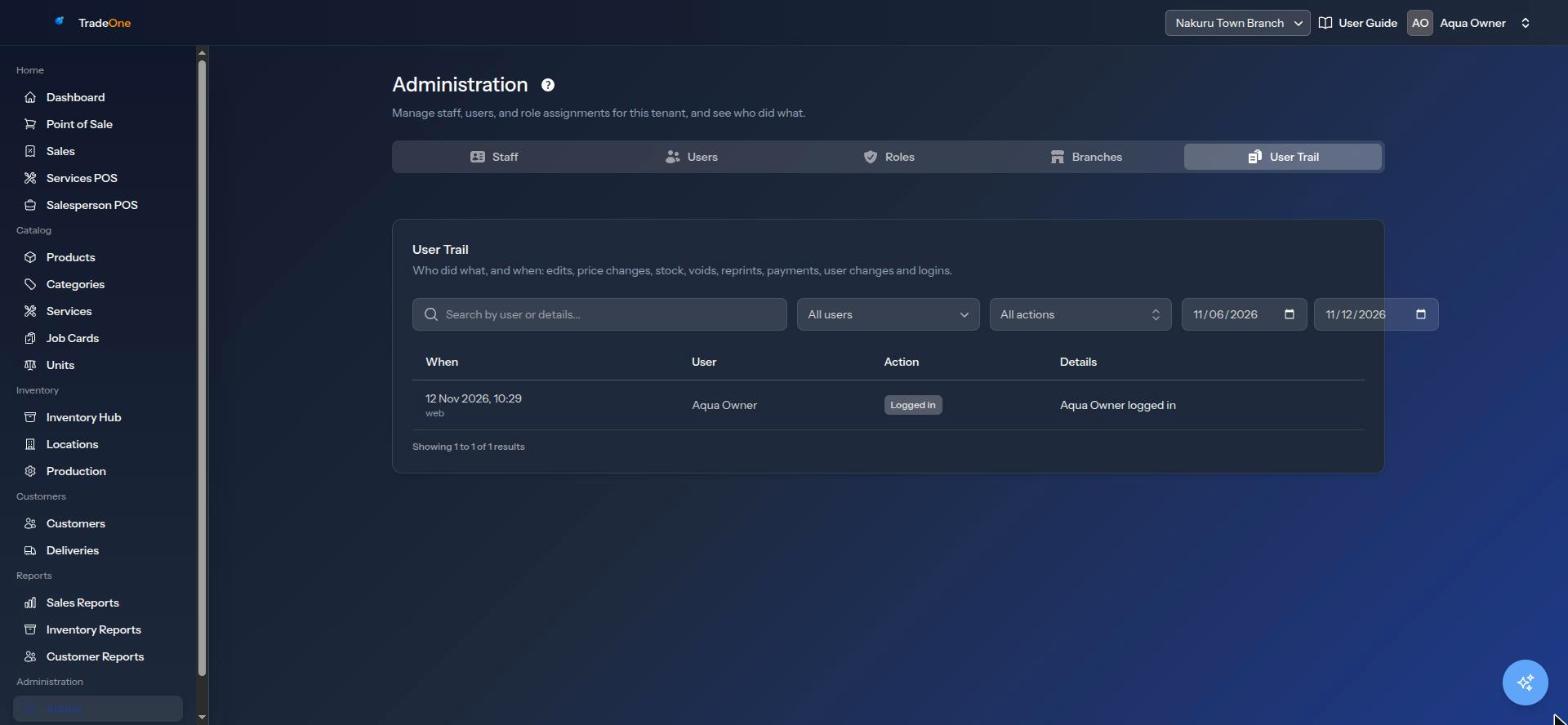
Open Administration > Admin. The page has up to five tabs: Staff, Users, Roles, Branches and User Trail. You see a tab only if your role has its view permission:
| Tab | Permission to see it |
|---|---|
| Staff | staff.view |
| Users | users.view |
| Roles | roles.view |
| Branches | branches.view (see Branches) |
| User Trail | audit.view |
If you have none of these, the page shows an error and you cannot open it. If you open it without a specific tab, you land on the first tab you may see.
Staff, Users and Roles Explained
- A staff member is a person who works for you. Sales, stock moves and jobs are credited to staff. A staff record does not need a login.
- A user is a login account. Every user is created from a staff member.
- A role is a named set of permissions. You give a user one or more roles. You do not give permissions to a user directly.
A water point might have: Wanjiku (cashier), Otieno (storekeeper) and Baraka (the owner). All three are staff. Each gets a user and a role that matches the work.
Staff
The Staff tab is described as "Employees in this tenant. Promote a staff member to a login user from the Users tab." Use the search box ("Search by name, phone, or email...") to find someone.
To add a person, press New staff (needs staff.create).
| Field | Notes |
|---|---|
| First name, Last name | Required |
| Phone number | Required, and no two staff can share one |
| Email (optional) | Must be a valid email, and unique |
| Active | Switch off to stop using the person without deleting them |
| Branches and Default branch | Shown when you have more than one branch. You must choose at least one |
If you forget the branch you see "Assign this staff member to at least one branch." In a business with one branch, the person is put in it automatically.
Press Create. You see "Staff member created." Edits show "Staff member updated."
The row menu has Edit, Deactivate or Activate, and Archive. Archive asks "Archive this staff record? It will be hidden from pickers." and then shows "Staff record archived."
Users
The Users tab is headed "Login accounts. Every user is promoted from a Staff record." It shows each user's name, email, roles and whether two-factor sign-in (2FA) is "Enabled" or "Off".
Creating a User
- Open the Users tab and press New user (needs
users.create). - Choose the Staff member ("Pick a staff record...").
- Optionally enter a Login email (optional). If you leave it blank, the user logs in with the staff member's phone number.
- Tick the roles under Assign roles.
- Press Create user.
TradeOne shows "Done — their password is" and 12345. Tell the person to sign in with their email or phone and this password. They must then choose their own. See Signing In.
You may see these messages:
- "This staff member has no phone number. Add one to the staff record, or enter a login email."
- "Another login already uses the phone number ... Enter a login email for this user instead."
Managing a User's Roles
In the row menu choose Manage roles (needs users.manage-roles). Tick or untick roles and press Save roles. You see "Roles updated for ...".
Resetting a Password
In the row menu choose Reset password (needs users.edit). TradeOne asks "Reset this password to 12345? They will have to choose a new one when they next log in." After you agree you see "Password reset to 12345. They must change it when they next log in."
You cannot reset your own password here. You see "Cannot reset your own password from here." Use Account > Security instead.
Resetting Two-Factor
If a user lost their phone, choose Reset 2FA from the row menu (needs users.reset-2fa). It asks "Clear this user two-factor authentication?". You see "Two-factor reset for ...". For your own account TradeOne says "Use your own security page to reset 2FA."
Roles
The Roles tab lists the roles of your business. Press New role (needs roles.create).
- Type a Role name. It can be up to 50 characters, with letters, numbers, dashes and underscores only. No spaces. Use
cashierorstore-keeper. The name must be unique. - Under Permissions ("Pick the permissions this role should grant.") tick what the role may do.
- Press Create. You see "Role created."
Use Edit permissions or Edit to change a role ("Role updated."). Use Delete to remove a role ("Delete this role? Users currently assigned will lose it.").
Every business has one role called superadmin (shown as "Super Administrator"). It has all permissions. Its name is locked and it cannot be deleted. You see "Seeded roles cannot be deleted." Its permissions are listed as "seeded".
Note
The page text says that "admin, manager, cashier, salesperson" are seeded roles. In practice only
superadminis created for you. Make the other roles yourself.
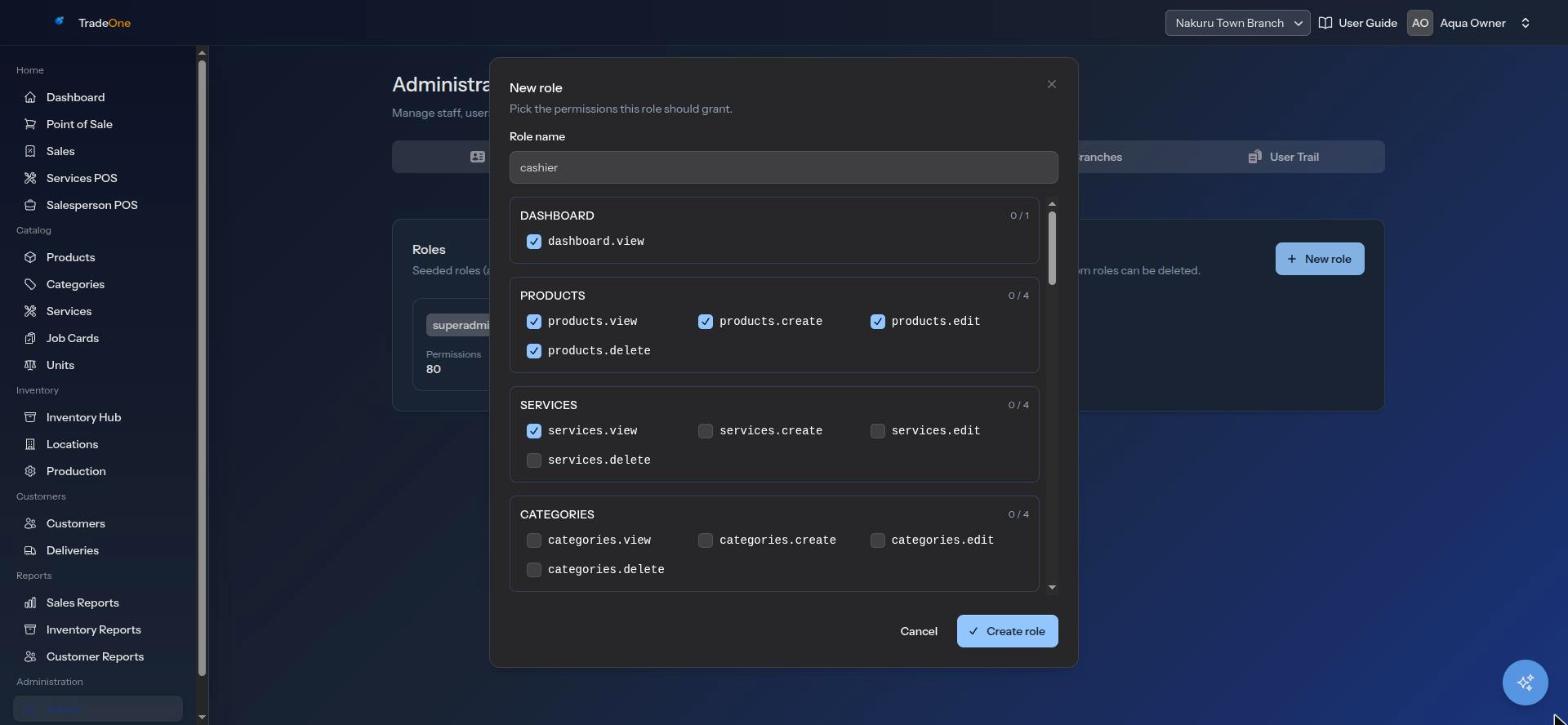
A Sensible Starting Set
| Role | Permissions to tick |
|---|---|
cashier |
pos.access, sales.view, customers.view, customers.create, customers.manage-transactions |
storekeeper |
inventory.view, inventory.adjust, inventory.transfer, inventory.view-movements, products.view, purchases.view, purchases.receive, locations.view, suppliers.view |
manager |
Everything the two above have, plus sales.void, products.create, products.edit, dashboard.view and the three reports. permissions |
Permissions
Permissions are grouped by module in the role form. This is the full list.
| Module | Permissions |
|---|---|
| Dashboard | dashboard.view |
| Products | products.view, .create, .edit, .delete |
| Services | services.view, .create, .edit, .delete |
| Categories | categories.view, .create, .edit, .delete |
| Branches | branches.view, .manage, .switch, .access-all |
| Locations | locations.view, .create, .edit, .delete |
| Suppliers | suppliers.view, .create, .edit, .delete |
| Purchases | purchases.view, .create, .edit, .delete, .receive, .pay |
| Inventory | inventory.view, .adjust, .transfer, .view-movements, .issue-to-staff, .return-from-staff |
| Production | production.view, .create, .complete |
| Customers | customers.view, .create, .edit, .delete, .manage-transactions, .manage-addresses |
| Point of sale | pos.access, pos.services-access, pos.user-access, sales.view, sales.void |
| Deliveries | deliveries.view, .dispatch, .deliver |
| Reports | reports.view, .sales, .inventory, .customers, .export |
| Staff | staff.view, .create, .edit, .delete |
| Users | users.view, .create, .edit, .delete, .manage-roles, .reset-2fa |
| Roles | roles.view, .create, .edit, .delete |
| Audit | audit.view |
| Settings | settings.view, .general, .features, .payment-methods, .appearance, .print-management |
Each chapter of this guide names the permission its page needs. A few things to know:
- The Units page uses the product permissions (
products.view,products.createand so on). - Job Cards use the Services permissions.
- Archiving a customer needs
customers.delete. - A role with no
dashboard.viewlands on another page on sign-in.
Note
Some permissions are used only by the mobile app.
settings.viewandsettings.generalcontrol the Business screen in the app.deliveries.deliverlets a driver update stops in the app, andinventory.view-movementslets the app show stock movements. Others, such asreports.view,reports.export,branches.switchandusers.delete, do not control anything you can see today. The web Business Settings page opens for everyone. See Business Settings.
User Trail
The User Trail tab (needs audit.view) shows "Who did what, and when: edits, price changes, stock, voids, reprints, payments, user changes and logins." It is read-only.
Use it to answer questions such as "Who voided this sale?" or "Who changed the price of cement?"
Filters:
- Search by user or details...
- All users
- All actions
- From and To dates
The columns are When, User, Action and Details. If nothing matches you see "Nothing recorded for these filters."