
Purchases and Suppliers
- The Buying Cycle
- Suppliers
- Purchase Orders
- Receiving a Purchase
- Price by Batch
- Paying Suppliers
- Cancelling and Deleting
- Printing a Purchase Order
The Buying Cycle
You order from a supplier, the goods arrive, you check them against the supplier's invoice, and the stock goes in.
flowchart LR
    A[Create order] --> B[Goods arrive]
    B --> C[Receive and enter totals]
    C --> D[Stock lands]
    D --> E[Pay supplier]
Both parts of this chapter live in Inventory > Inventory Hub: the Suppliers tab and the Purchases tab.
Suppliers
The Suppliers tab (needs suppliers.view) is your list of vendors.
Press New supplier (needs suppliers.create):
| Field | Notes |
|---|---|
| Name | Required, up to 255 characters |
| Contact person | Optional |
| Phone, Email, Address | Optional. The email must be valid |
| Active |
Press Create. You see "Supplier created." Editing shows "Supplier updated." (needs suppliers.edit).
The table shows Contact and Owed, how much you still owe that supplier. Search with "Search...". If there are none you see "No suppliers yet."
Archive (needs suppliers.delete) asks "Archive this supplier?" and shows "Supplier archived."
Purchase Orders
The Purchases tab (needs purchases.view) lists your orders. Columns: Order, Supplier, Location, Items, Total, Status and Payment. Filter by All statuses: Draft, Received or Cancelled.
The statuses are:
- Draft: ordered, goods not yet received. No stock has moved.
- Received: stock has landed.
- Cancelled: you cancelled it before receiving.
Do not confuse this with a saved draft, which is a form you put aside. See Saving a Draft.
Creating a Purchase Order
- Press New purchase (needs
purchases.create). - Choose a Supplier. It is optional ("No supplier").
- Choose Receive to location. This is where the stock will land. For stock you will sell at the till, choose the counter.
- Add lines with Add item. Choose the item ("Search items...") and the quantity in Qty.
- Add Notes if you want.
- Press Create. You see "Purchase order created. Enter what was paid when you receive it."
The form says "Just the items and quantities. What was paid is entered when the goods are received." Each order gets a number like PO-00012.
Items Bought in Packs
If an item is set up with a pack (see Products), you can order it in packs or pieces. The line shows, for example, "1 Bale = 12 pcs". Ordering 7 bales means 84 pieces will land in stock.
Saving a Draft
If you are not ready, press Save as draft instead of Create. You see "Saved as a draft. Open it from the purchases list to finish it."
The saved draft appears in the list with the badge "Saved draft" and "Not created yet" as its number. It has no number, no stock effect and no supplier balance, because it is not a purchase yet.
To finish it, press Continue… ("Continue saved draft"). When you press Create, it becomes a real purchase order and the draft is removed. To throw it away use Delete draft. It asks "Delete this saved draft? This cannot be undone." and then shows "Draft deleted."
Separately, while you are filling in the form, TradeOne keeps what you typed for two hours in case your page reloads.
Who Can See and Continue a Saved Draft
Everyone who works in the branch sees the saved drafts, with "By Wanjiku" showing who made each one. But only the person who saved a draft can continue it or delete it. Anyone else sees "Only Wanjiku can change or delete this draft."
Drafts belong to the branch where they were made.
Receiving a Purchase
When the goods arrive:
- On the order's row, open the menu and choose Receive… (needs
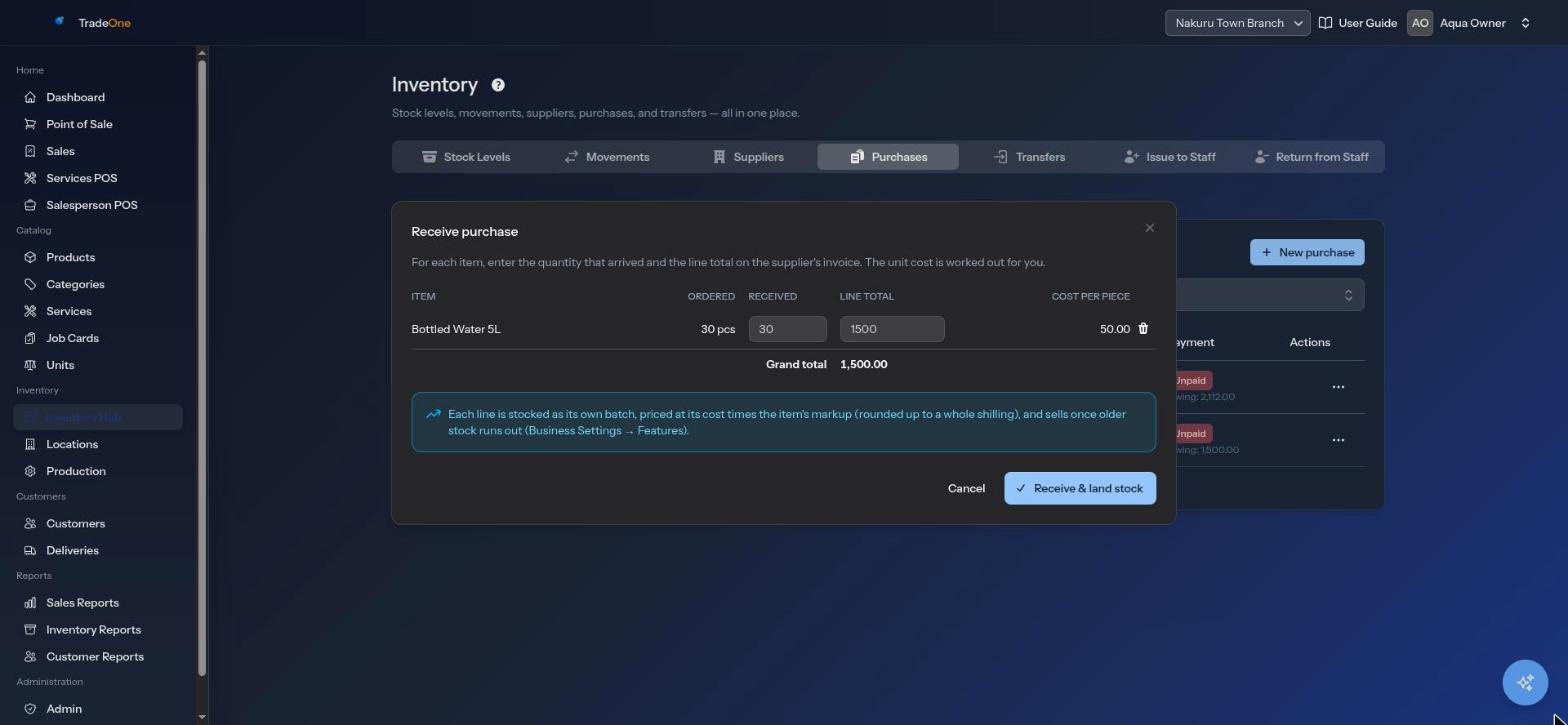
purchases.receive). An order that is already received offers only View items. - The box "Receive purchase" opens. It says to enter, for each item, the quantity that arrived and the line total on the supplier's invoice.
- For each item fill Received (the quantity that arrived) and Line total (what the invoice says for that line).
- TradeOne shows the Cost per piece: line total divided by quantity. The Grand total is the sum of the lines.
- Press Receive & land stock. You see "Purchase received — stock landed."
Example: 40 crates of 500ml water at KSh 2,400 a crate. You received 38 because 2 were short. You enter Received 38 and Line total 91,200. The cost per piece is worked out from that.
Rules:
- At least one item must have a quantity. Otherwise: "Enter the quantity received for at least one item."
- Numbers cannot be negative.
- An order can be received only once: "Purchase is already received."
- To drop an item that was never delivered, use Remove item ("Remove this item from the purchase?"). You see "Item removed from the purchase." If it was the last item, the purchase is cancelled: "No items left — purchase cancelled." This needs
purchases.edit.
What receiving does:
- Puts the stock into the order's location.
- Records a movement of type "Purchase".
- Raises what you owe the supplier by the total, if there is a supplier.
- Records the receipt in the User Trail.
Price by Batch
If Price stock by batch is on in Business Settings, the Receive form notes "Each line is stocked as its own batch, priced at its cost times the item's markup...".
Each delivery then becomes a batch with its own cost and selling price:
- The selling price is the batch cost times the item's markup, rounded up to a whole shilling.
- Stock sells oldest batch first.
- The price on the till becomes the price of the oldest batch that still has stock.
Example: a 500ml bottle costs KSh 18 and sells at KSh 25 (markup about 1.39). A new delivery costs KSh 20. The new batch sells at KSh 28. The old batch of 30 bottles keeps selling at KSh 25 until it is finished. Then the till shows KSh 28.
This means a price on the till can change after you receive stock. See Troubleshooting.
If the old batch is already sold out, the new price shows straight away. If Price stock by batch is off, prices and costs are never changed by receiving.
Paying Suppliers
Open the row menu of a received purchase that has a supplier and is not fully paid, and choose Record payment (needs purchases.pay). The box "Record supplier payment" says "Pay down what is owed on this purchase." The Amount starts at what is outstanding.
You see "Payment recorded." The Payment column shows Paid, Partial or Owing.
Messages: "Payment amount must be positive.", "Payment exceeds the outstanding balance (...) on this purchase.", "This purchase has no supplier to pay."
Cancelling and Deleting
| Action | When | Result |
|---|---|---|
| Cancel order | Not yet received. Needs purchases.edit |
"Cancel this purchase order? It stays listed as cancelled." Then "Purchase PO-00012 cancelled." |
| Delete order | Needs purchases.delete |
"Delete this purchase order and its items? This cannot be undone." Then "Purchase PO-00012 deleted." |
A received purchase cannot be cancelled or deleted: "Only a purchase that has not been received can be cancelled." and "A received purchase cannot be deleted: its stock and supplier bill depend on it." To fix a received purchase, adjust the stock instead. See Inventory.
Printing a Purchase Order
Choose Print / PDF in the row menu to open a printable PDF of the order.